Capture requirements
Let the agent read the tender documents, mark requirements by hand, and check and correct the list.
In the Requirements module of the Workbook you collect the conditions your bid has to meet. They are in the tender documents, the documents the contracting authority provides with the tender. The document is on the left, the list on the right. A requirement comes about in two ways: the agent reads the documents and writes them into the list, or you mark a passage yourself. Both ways can be mixed in the same list.
You need a card in the Pipeline. You open the workbook on the card with Edit in workbook. What the modules of the workbook do is on Workbook.
From Pro
You create and change requirements from Pro on and during the Pro trial. On Free you only read the list. Exclusion, Scored, Approve, Reject, Merge and Save open the window Workbook not in your plan with Upgrade to Pro there, a comment opens the window Comments not in your plan. Nothing is saved in either case. You also start the agent from Pro on: on Free, Extract requirements and Find the passage open a window with Upgrade to Pro. What the agent wrote during the Pro trial stays in the workbook after the switch to Free. More on Plans.
Exclusion and scored
You assign a requirement to one of two kinds. The list shows both kinds in separate sections.
- Exclusion: whoever does not meet the condition drops out of the procedure, regardless of price. The head of Exclusion criteria shows their number followed by how many of them still lack evidence, for example "2 criteria without evidence" or "none of them with evidence". You match the evidence in the Suitability module.
- Scored: the condition counts with points towards the evaluation of the bids. Next to the points you see the share of all points of this tender, for example "10 pts · 25%". procuris works out the share from the points of all scored criteria.
A row not yet assigned to a kind sits under Not sorted yet. Depending on the tender, the sections Product requirements (requirements on the product) and Formalities (what the submission requires formally) are added.
Letting the agent read the documents
The agent reads the tender documents in the Tender documents module. These are the files from the procurement portal and the ZIP archives you filed there yourself. Files you upload into the chat are not read for the list.
In the workbook, open the Requirements module through Switch module. If it says Put the tender documents on file first, the documents are still missing. Go to the tender documents takes you there, where you file the ZIP archive from the portal.
On the right of the row above the document, choose Extract requirements. The button carries a spark inside a coloured frame. In a narrow window it shows only the spark without text.
The chat window opens with the sentence "Extract the requirements from the tender documents of this tender." The chat confirms that the requirements run is starting and usually says how many documents the agent reads.
Two more buttons start the same run. A button with the same name, Extract requirements, sits below an empty chat while a workbook is open. Start agent ends the product tour. What else the chat can do is on Chat.
If the tender has no readable document yet, no run starts, and the chat says so in one sentence. If the AI allowance of your plan, including the margin beyond it, is used up, no run starts either. A run counts towards the AI usage of your plan (Usage).
Seeing how far the agent is
A run takes a few minutes, depending on the size of the documents. A line in the chat below the start message shows the progress.
| What the chat shows | Meaning |
|---|---|
| "Reading Leistungsbeschreibung.pdf (3/7)" | The named document is being read, here the third of seven. |
| "More is going on than usual …" | The run waits for a free place and then starts by itself. |
| "Done: 14 requirements from 6 documents" | The run is through. The new rows are in the list. |
| "Done, there was nothing new to read" | Nothing in the documents has changed since the last run. |
| "The requirements run could not be completed." | The run stopped. Start it again with Extract requirements. |
A second click on Extract requirements does not start a second run. What it does depends on whether the chat is still writing:
- While the chat is still answering, a spinning circle replaces the spark in the button. A click then only brings the chat window to the front and sends nothing.
- Once the chat's answer is complete and the run is not, the click sends the sentence again. The chat replies that the requirements run for this tender is already running.
You do not have to wait. The run continues when you minimize the chat window, switch module or leave the workbook. When it is done, the list loads the new rows by itself, you do not need to reload the page. New rows are highlighted briefly. While this workbook is open, a short message gives the number, for example "14 requirements updated". If you are in another module at that moment, View in the message takes you to the list, and Requirements carries a dot in Switch module until you open it.
Checking the agent's rows
Rows the agent wrote carry a spark in front of the text. Point at it with the mouse and it reads AI. On the right of the row there are two squares: the cross is Reject, the tick is Approve. A hint shows the name when you point at them with the mouse. Check these rows against the document before you work with them, because the agent can quote a passage wrongly or capture it twice. The source sits on the second line with file name and page. Point at it to see the quote, a click opens the passage in the document.
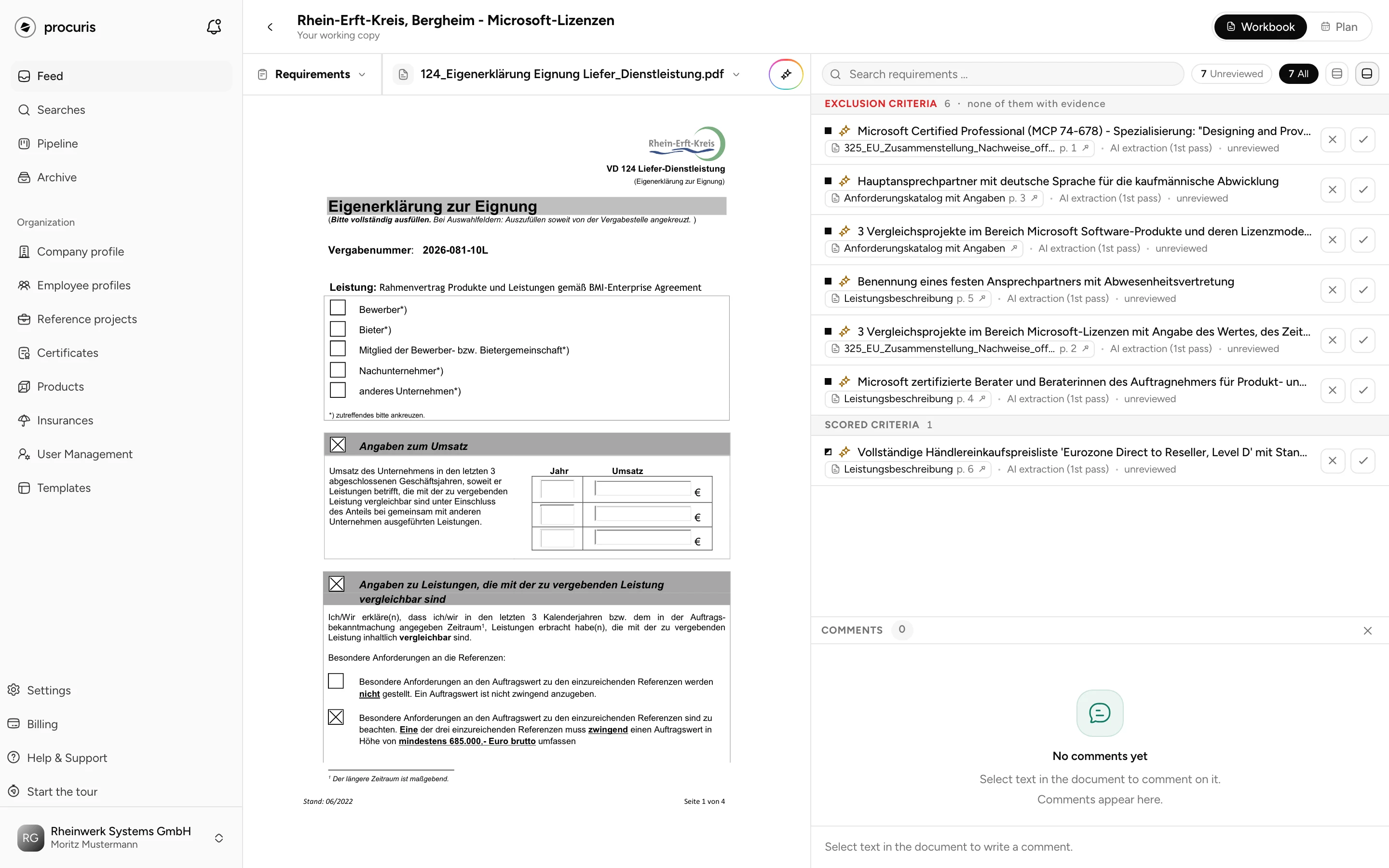
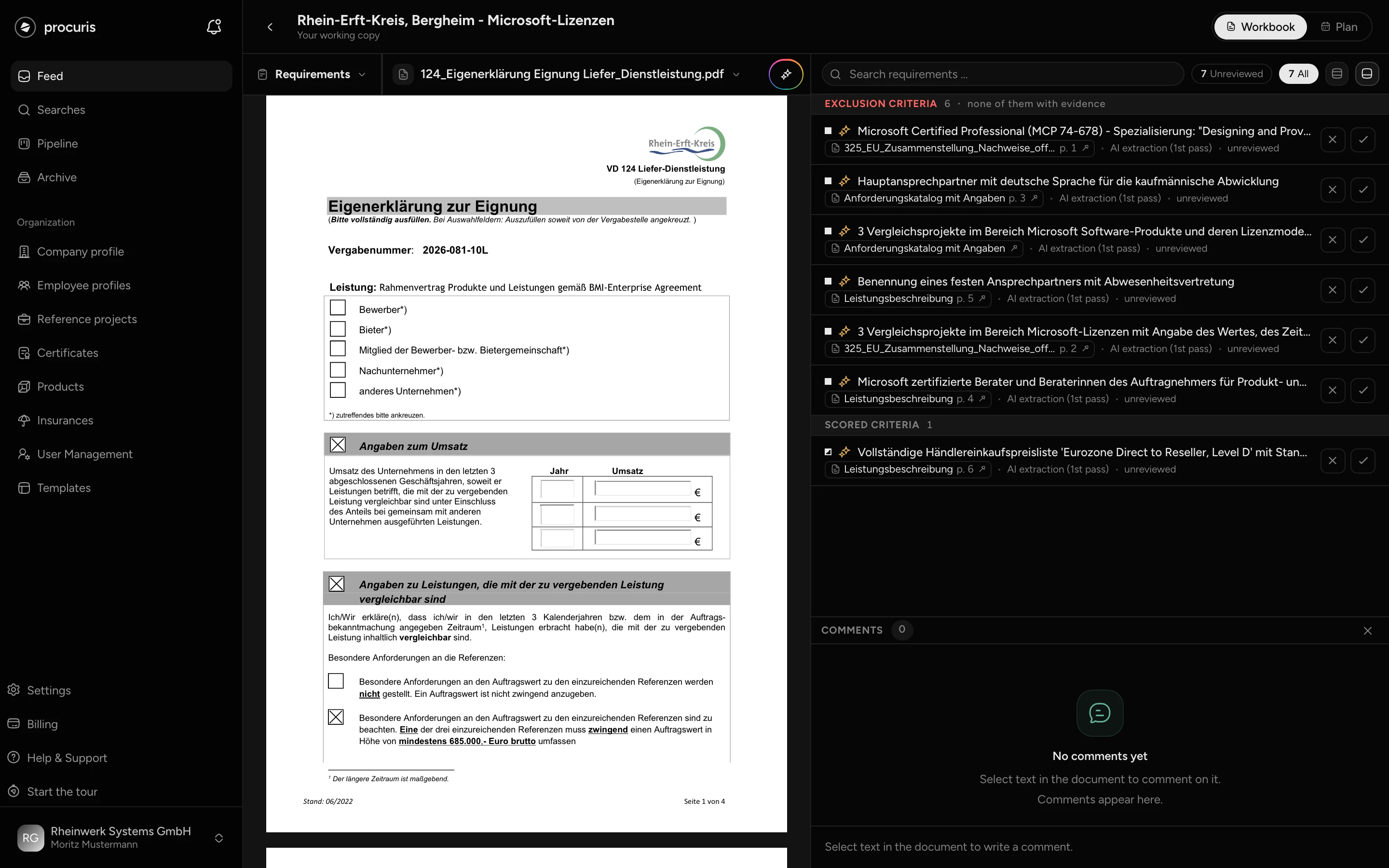
- Approve confirms the row. It then shows "approved" and keeps the spark.
- Reject opens Reject requirement. Under Why? you pick one or more reasons, for example Duplicate or Wrong quote, and add a note if needed. The row moves greyed out and struck through into the Rejected section and stays readable there.
- Undo reverses an approval or rejection.
Stop asking for a reason in the dialog turns off the question for your whole organization. After that, Reject rejects without a dialog.
At the top of the list, Unreviewed filters to the agent's rows that nobody has approved or rejected yet. All shows the whole list. The search field Search requirements … searches the text of the rows and the names of the sources.
If a row has no source, a square with a magnifier on a sheet sits on the right (Find the passage). A click opens the chat and asks there for the passage in the tender documents, with file and page. The answer appears in the chat, the row itself does not change.
Marking a requirement yourself
Pick the document in the selector to the right of Switch module. The selector shows the name of the open document. A document marked "no text version" cannot be marked.
Select the passage in the document with the mouse. The window Use the selected passage opens next to it.
Choose Exclusion. The requirement is in the list without a further step. For a scored criterion choose Scored instead, enter a value from 1 to 10,000 under Points (default 10) and choose Capture.
The row then sits in the list, and the passage is marked in the document. A click on the marking jumps to the row. The row takes the start of the passage as its title. You give it a shorter title through Edit requirement.
With Comment in the same window you write a comment on the passage instead of a requirement. With @ you mention colleagues.
Correcting a wrong or duplicate requirement
A click on a row opens Edit requirement. There you change the Title, the Classification (Exclusion, Scored or Open) and, for a scored criterion, the Points. Save applies the change. The text under Marked text stays unchanged, because the marking in the document depends on this wording.
Below it, Written by shows where the row comes from:
| Written by | Meaning |
|---|---|
| Captured by hand | Someone in your organization marked, edited or merged the row. This also applies to a recognized requirement that was edited and saved afterwards. |
| Contract notice (eForms) | The detail comes from the contract notice, the publication of the tender. |
| Recognized from the tender documents | procuris found the requirement in the tender documents, for example during a run of the agent. |
You merge a duplicate requirement instead of deleting it:
Under Merge requirements, adjust title and description if needed and choose Merge.
The dragged row moves under the target requirement and keeps its sources. Nothing is deleted. If it was the wrong row, open it and choose Move out of group.
Delete also sits under Edit requirement. Which question follows depends on who owns the row:
- Delete for good? appears for rows your organization created, such as your own markings. The row is deleted with its sources.
- Remove from this list? appears mostly for the agent's rows. The row only leaves your list and is not deleted.
For the agent's rows Reject is usually the better choice, because the row stays readable under Rejected and can be brought back with Undo.