Record certificates
Enter certificates once, see their expiry in the list and replace expired ones.
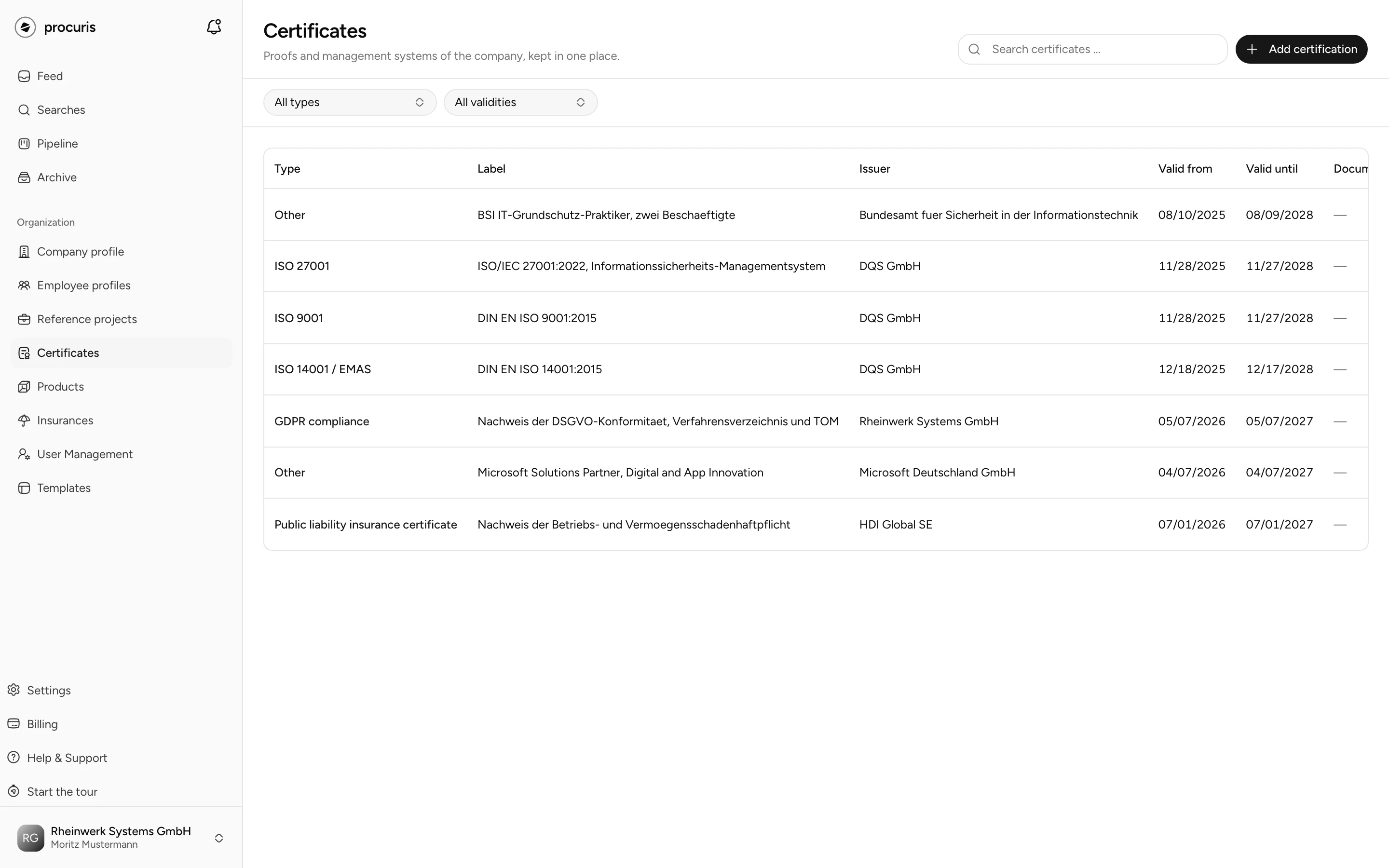
You enter a certificate once, and it is then ready in the workbook of every tender, and from Pro onward also for matching in the preview. You find the list in the sidebar under Organization › Certificates. Certificates belong to the company profile. procuris compares them with the suitability criteria, meaning the proofs a contracting authority asks bidders for.
Matching from Pro
Matching tenders against your certificates only comes with Pro, including the Pro trial. Details under Plans.
Record a certificate
The page requires a company profile. If there is none, it shows Company profile missing, and Open company profile takes you there.
Choose the Type, for example ISO 9001 or Fachkunde. If none fits, choose Other and write the name into Label.
Enter Label and Issuer as they appear on the certificate, such as "ISO 9001:2015" and the name of the certification body. Each field holds up to 100 characters.
Set Valid from and Valid until. Valid until may not lie before Valid from. If an entry is too long or Valid until lies before, procuris does not save and reports an error. The form does not mark the field itself.
The certificate then appears in the list, and the message Added shows briefly.
Only the Type is required, and it is set to ISO 9001 when the form opens. All other fields are optional. Enter Valid until anyway, because procuris can only show when a certificate expires with this date. Public liability is not a certificate and Type does not offer it. You record it under Insurances with the kind Public liability, where insurer and coverage amount have a place too. An entry saved earlier with the type Public liability insurance certificate stays in the list and keeps its type. Keep the policy under Insurances anyway, because tenders often ask for a minimum coverage and only there is the coverage amount recorded. Two ways save typing:
- From the setup. Certificates you ticked during the setup are already in the list, though only with their type. Add the details there.
- With the chat. Attach the certificate as a PDF in the chat and ask it to add it to the profile. It names the file and asks whether it should add it to the profile. After your yes, it reads label, issuer and dates from the file, reports read as certificate and creates the entry. Go to the entry in the company profile opens it. Check the values there, because the chat takes them from the file. If you give it the details without a file, it repeats them and asks in the same way before entering them. More under Chat.
Keep an eye on expiry
The Valid until column shows the state of each certificate:
| State | Display |
|---|---|
| expired | date in red, with a warning icon and expired |
| expires within the next 60 days | date highlighted, with a clock and, for example, "12 days left" |
| expires later | the date only |
| without Valid until | no date, no marking |
The All validities filter shows only Valid or only expired. The filter counts certificates without Valid until as valid. The All types filter narrows to one type, and the search field searches type, label and issuer.
procuris sends no reminder about an expiry, neither by email nor as a notification. A look at the list once a month is enough, however, because it marks every certificate with Valid until 60 days before it expires.
Where the certificate counts
Expired certificates no longer count as proof, neither with the contracting authority nor in procuris matching. A certificate that is not in the list counts as not available. A self-declaration does not replace a certificate: the self-declaration checkbox in the company profile proves no requirement that asks for a certificate. procuris uses your certificates in three places:
- Suitability in the preview. When you open a hit from a saved search, the Suitability section checks the requirements against your profile. Only valid certificates count there. If a certificate is missing, Add certificate opens the same form, and you stay in the hit list. If procuris knows the required kind, the Type is already selected. Suitability feeds into the Fit of your hits, more under Tender in detail.
- Workbook. In the Suitability module, all certificates of the list are on the left under Certificates, each with "valid until". There you map them to the requirements of the tender, see References for the steps. An expired certificate stays visible, carries the expired badge and shows, for example, "expired on Aug 31, 2026" instead of "valid until". If you map it, it appears on the requirement in red and struck through, and the requirement does not count as covered. The hint on it points to the company profile: enter the new validity date there, see Replace an expired certificate. On the day shown under Valid until, the certificate still counts.
- Forms. In the Fill in module, procuris proposes details from your certificates when a form asks for them. The proposal names the certificate as its source, such as "Source: certificate ISO 9001:2015".
Link a document
You do not upload the certificate file in this form. The Link document field only offers document links already stored in your company profile. If there are none, it shows None. The field is optional, and the Document column in the list shows the link, if there is one. The chat, too, only takes the details from an attached certificate, and the Document column stays empty afterwards.
Replace an expired certificate
Change the existing entry instead of creating a new one. Otherwise the old entry stays in the list as expired.
Enter the new dates in Valid from and Valid until, and for a new certification body also the Issuer.
If your company no longer holds a certificate, delete it with the trash icon in the Actions column and confirm with Delete. This cannot be undone.