Record insurances
Record insurances once and use them as proof in your bids.
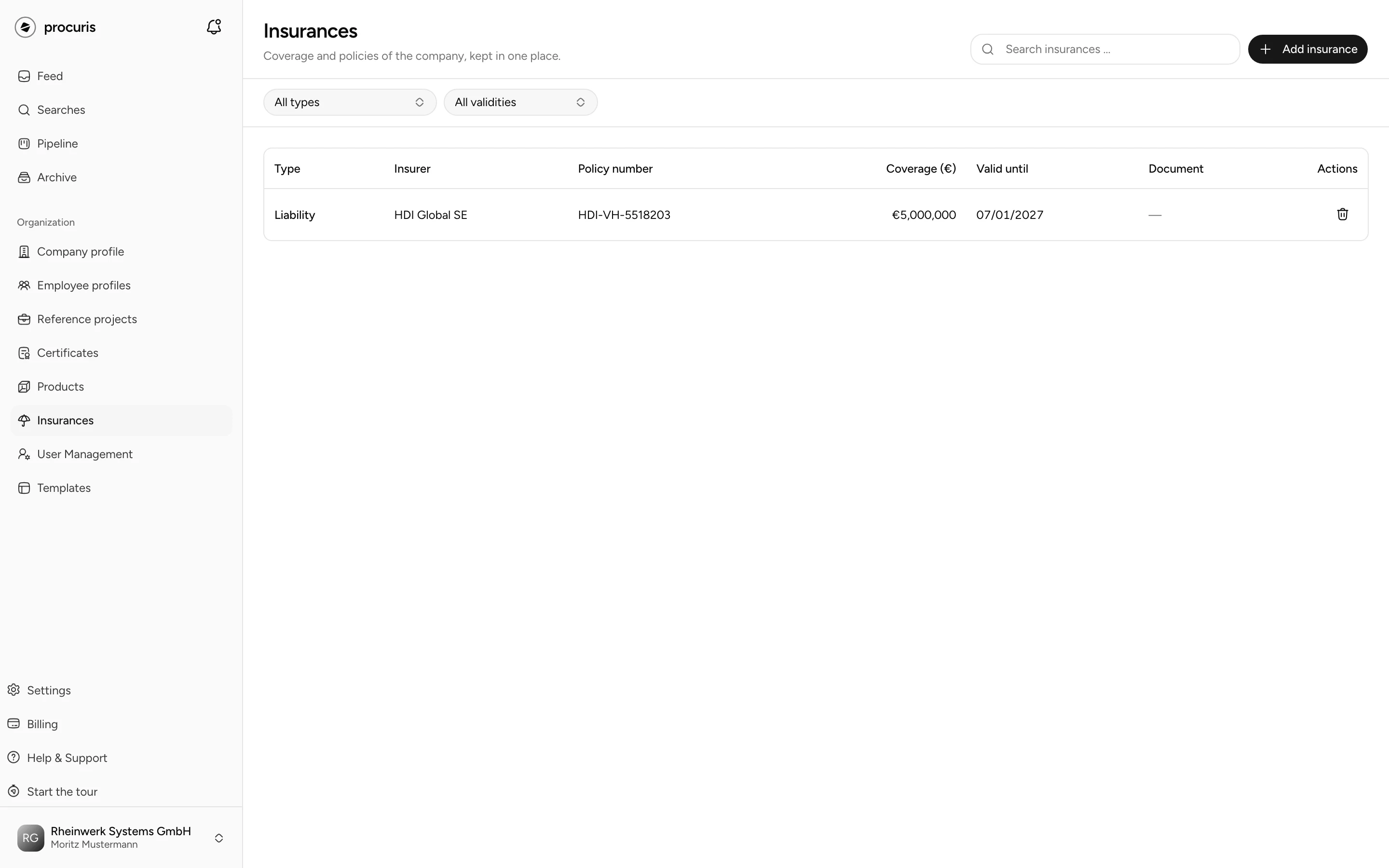
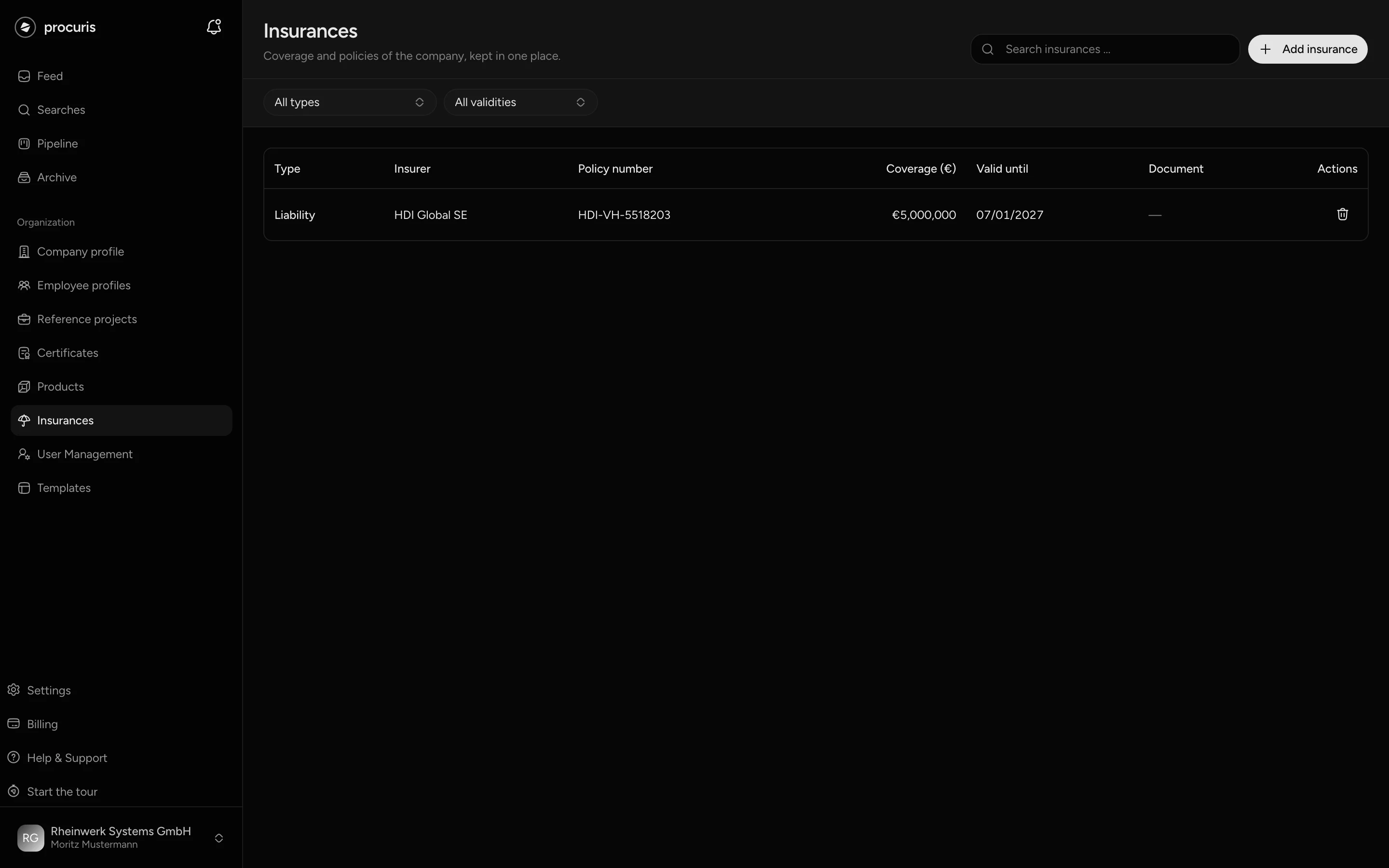
You record an insurance once. You then map it in the workbook of each tender to the requirements that ask for insurance, and from Pro onward procuris matches it against these requirements in the preview. You find the Insurances page in the sidebar in the Organization group. It requires a company profile. If there is none, the page shows Company profile missing and the button Open company profile.
Matching from Pro
Matching tenders against your insurances only comes with Pro, including the Pro trial. More under Plans.
Which insurances you record
The Type assigns each insurance to one of five kinds: Public liability, Professional liability, Environmental liability, Construction all risks and Other. Record financial loss liability as Professional liability. Public liability is an insurance and not a certificate. You therefore record it here, Certificates does not offer it. Which insurance a tender asks for is stated in the tender documents. procuris gives no legal advice on this.
A tender may ask for the minimum coverage per type of damage, such as 3 million euros for personal injury and 10 million euros for property damage. Record the amounts the way your policy splits them. Forms may also ask for the annual aggregate, the deductible and the start of the insurance.
| Field | What goes in |
|---|---|
| Type | Kind of insurance, preset to Public liability. The other fields are optional. |
| Insurer | Name of the insurance company. |
| Policy number | Number of the policy. |
| Coverage per type of damage | One row per type of damage: Personal injury, Property damage, Financial loss, Environmental damage or blanket (one amount for all types of damage). Whole euros above zero, each type of damage at most once. |
| Coverage (€) | One single amount for the whole policy. The field only shows while no type of damage is entered. |
| Annual aggregate | None, 1x, 2x or 3x: how often the insurer pays the coverage amount at most in one insurance year, as your policy states it. |
| Deductible (€) | Your own share in a claim in whole euros, zero is allowed. |
| Valid from and Valid until | Term of the policy. Without Valid until, the insurance counts as open-ended and triggers no warning. |
| Link document | A document link already stored in your company profile. Without a stored link, it shows None. You cannot upload anything here. You take the details of a confirmation as a PDF through the chat, see below. |
Create an insurance
Open Insurances and click Add insurance. The form opens on the right edge.
Click Add type of damage, choose the type of damage and enter the amount. Repeat this for each type of damage in your policy. If the policy names only one amount, enter it under Coverage (€) instead.
procuris then reports "Added", and the insurance appears in the list. If Create stays gray, a value is invalid, and the field names the error, such as "Valid from lies after valid until."
If you have the insurance confirmation as a PDF, it works from Pro onward without typing. Attach the file in the chat and write "Add this to the profile." The chat names the file and asks whether it should add it to the company profile. After your yes, it reads the confirmation, reports read as insurance and creates the insurance with the details from it. Check the entry in the list afterwards, because the chat takes the details from the file. If you give it the details without a file, it repeats them and asks in the same way before entering them.
For the completeness of the company profile, an insurance of type Public liability with a coverage amount counts. Under Getting started in the sidebar, it belongs to the Complete profile row. This row is only done once register, headcount, turnover, subcontracting, prequalification and trade association are in place too, see Company profile.
Where the insurance counts as proof
- Suitability of a tender. In the preview of a hit from a saved search, each requirement shows what your profile holds for it. If no insurance of this kind is recorded yet, Add insurance opens the same form without leaving the tender. If the amount of a recorded insurance falls short, that insurance appears on the requirement, without the link. Change the entry then, see below. If you confirm a requirement with Confirm, procuris asks "What meets this?" for rows without complete proof. There you choose the insurance. If a requirement only asks for proof of a public or professional liability insurance or a construction all risks insurance, without an amount, you also cover it with an insurance from this list. An entry saved earlier as the certificate Public liability insurance certificate still covers it.
- Workbook. In the Suitability module, you map the insurance to the requirements of the contracting authority. An expired insurance stays visible there and carries the expired badge. If you map it, it appears on the requirement in red and struck through, and the requirement does not count as covered. The hint on it points to the company profile: change the term as described below. On the day shown under Valid until, the insurance still counts.
- Forms. In the Fill in module, procuris proposes details from your insurances when a form asks for them. The proposal names the insurance as its source and only reaches the submission with Accept.
How suitability is displayed is explained in Fit and threshold.
Update coverage or term
For a renewed policy, change the existing entry instead of creating a second one. An expired insurance does not count as proof. Otherwise the company profile keeps reporting an expired public liability insurance with coverage amount at the ring at the top right, such as "1 proof expired".
Click the Type of the insurance in the list. The form opens with the saved values, and you can change them directly. As soon as a value differs, Discard and Save appear. With Save, procuris applies the change and reports "Updated".
The Valid until column shows which policy is running out. In the last 60 days before the end, it shows "12 days left" or the matching number in yellow, after the end expired in red. The All validities filter shows either only Valid or only expired, the All types filter one kind.
If you change insurer, create the new policy and delete the old one with the trash icon in the list. Deleting cannot be undone.