Organization and access
Join your company's organization, understand the access screens, switch between organizations and change name and logo.
An Organization is your company's shared workspace in procuris. Saved searches, pipeline and company profile belong to the organization, not to you as a person. If your company already works with procuris, join its organization instead of creating a second one. You need an account with a confirmed email address for this (Getting started).
Join your company's organization
The first screen after signing in shows which way applies to you.
| What you see | What it means | What you do |
|---|---|---|
| "Your team is already here", below it "People at … already use Procuris" or "Your team already uses Procuris" | procuris found an organization of your company through your email domain. | Request to join, see below. |
| You have been invited with the name of an organization | There is an invitation for your address. | Choose Accept invitation. |
| Create your organization | procuris offers you no organization to join. | If you are the first person of your company in procuris, create the organization (Set up procuris). If your team already uses procuris, ask for an invitation, see below. |
If you see Create your organization although your team already uses procuris, do not click Continue there. This step creates a second, empty organization. Instead, ask a colleague with the Owner role to invite you in User Management (User management). The invitation arrives by email, and you accept it with Join organization (Accept an invitation).
Matching by email domain
The email domain is the part of your address after the @. An organization takes over the domain of the business address it was created with. procuris offers you a join request only under three conditions:
- Your address is confirmed.
- It has exactly the same domain as the organization. "sales.company.com" and "company.com" count as different.
- It is a business address. Addresses of general mail providers such as gmail.com, gmx.de or web.de do not match you to any organization.
The matching only suggests, it grants no access. Without the approval of a person with the Owner role you do not get into the organization. If the organization was created with a private address, it has no domain. Then only an invitation leads in.
Request to join
Check the name of the organization. If several are offered, choose your team's. The first in the list carries the label Primary organization and is preselected. If in doubt, ask a colleague which organization the team works in.
Under Message to the owners, write who you are and what you use procuris for. The field is optional and holds at most 500 characters.
procuris then shows "Request sent to …" with the date until which the request is valid. The owners get an email with the subject "Join request for …" and a notice in procuris. If nobody answers after three days, procuris reminds them once. You can leave the page open, it shows the answer by itself.
Whoever admits you decides in User Management in the Join requests section with Approve or Decline. Only people with the Owner role see this section. You are admitted with the Member role. If your request shows No free seat, the organization first has to free up a seat or change its plan.
| Display | What happened | What you do |
|---|---|---|
| "Request sent to …" | The request is open. It is valid for 14 days. | Wait. Withdraw request takes it back. |
| "You are now a member of …" | An owner approved. You get an email about it. | Choose Open …. procuris opens the organization. |
| "… declined your request" | The request was declined. | If that was a mistake, talk to the owners directly. Ask again is possible seven days after the decline, the date is on the screen. Sign in with a different address signs you out. |
| "Your request to … expired" | Nobody answered within 14 days. | Choose Ask again. The owners are notified once more. |
Only one request can be open at a time, even if several organizations are offered. After five requests within 24 hours, procuris shows "Too many requests" and names the time from which it works again. If procuris shows "This organization has no owner right now.", write to support@procuris.eu. The same applies if the organization shown is not your company: Contact support under "Not your company?" opens an email to support.
Some of these screens also show Create my own organization without a trial. With it you found an organization of your own next to your team's. It starts without a Pro trial and admits more people only on a paid plan. Choose this only if you deliberately want to work separately from the team.
No pilot access
If procuris requires a pilot invitation for your account and you have not redeemed one yet, a separate page opens after signing in instead of the feed. It shows a lock and the heading "Pilot access is not enabled for this account.". You do not see the sidebar and the feed then.
The procuris team grants pilot access, not the owners of your organization. It arrives as an email with the subject "Your Procuris pilot access" at your address.
Open the email and choose Activate pilot access. The invitation is redeemed through this link, not through the Redeem invitation button on the page without access.
If you already have an account, choose Sign in with this account or Continue to Procuris on the following page. Without an account you create it there, with the address preset.
The invitation is valid for seven days and only for the address it went to. If you are signed in with a different address, choose Sign out and sign in with the invited one. If you have no invitation or it has expired, write to support@procuris.eu from your address.
Switch between organizations
Switching works only if you are a member of more than one organization.
At the bottom of the sidebar, click the card with the name of your organization.
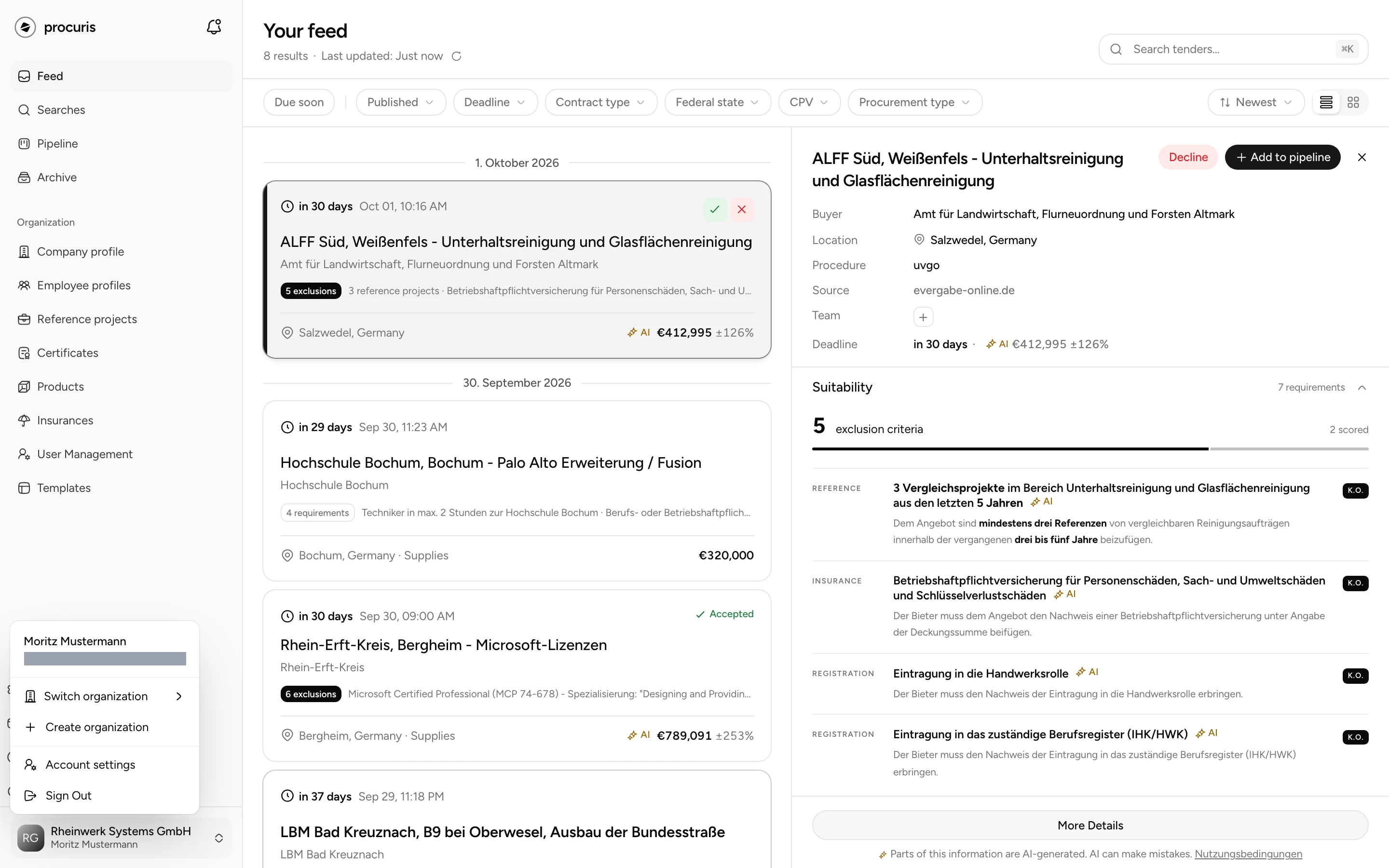
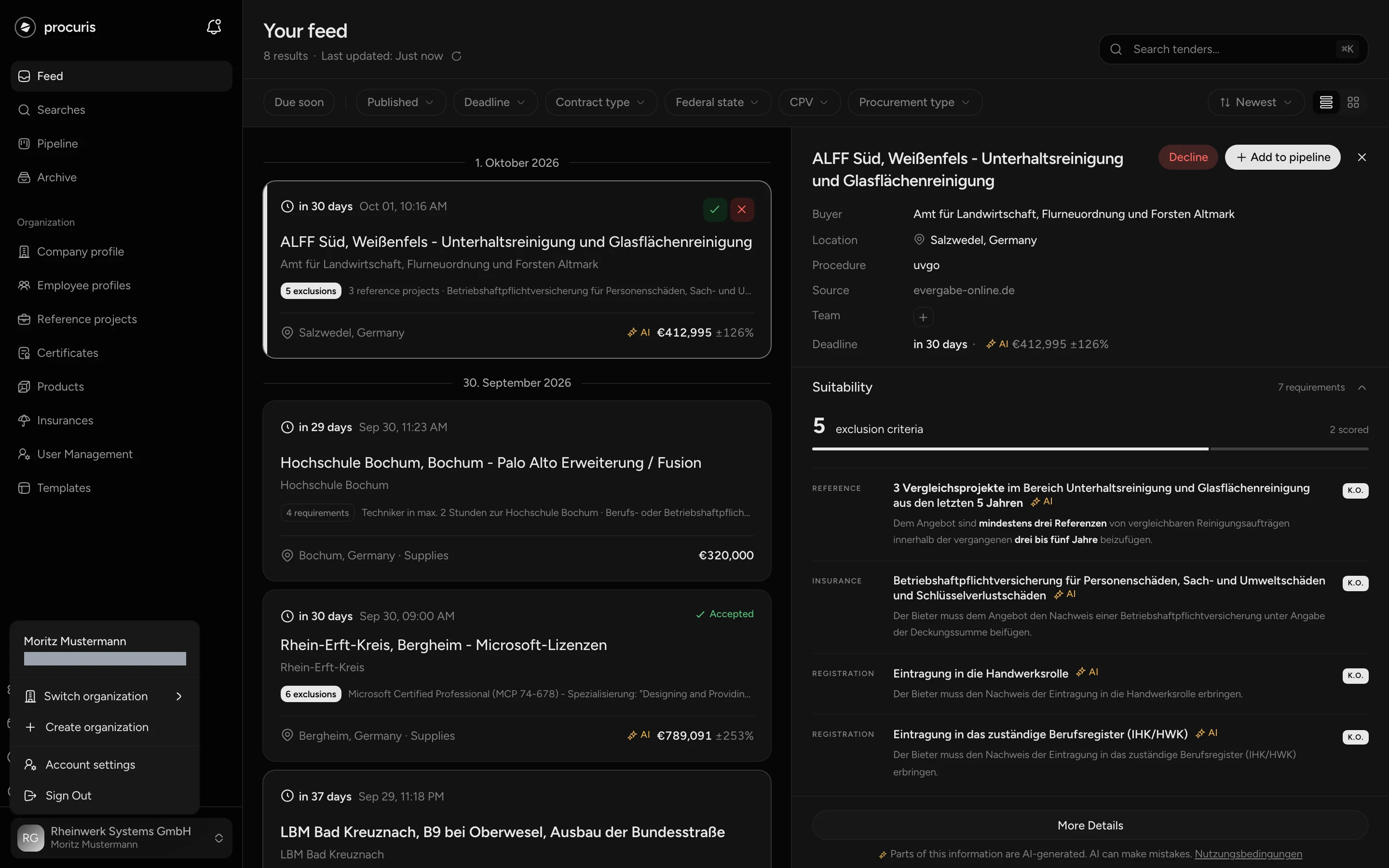
procuris then opens the Feed of the chosen organization. The sidebar entries now show its content, for example a different company profile.
Create another organization
Create organization in the same menu checks on each click whether you can create another organization yourself. What appears next tells you the result:
- The setup opens. You create the new organization yourself (Set up procuris).
- The dialog "More organizations on request" opens with the sentence "Everyone can create one organization themselves. Our team sets up additional ones for you through an individual quote." Enter a Phone number, a Message if you like, and choose Send request. The procuris team gets back to you at your email address.
Access paused
A paused organization keeps its data and members, it just cannot be opened. In the Switch organization menu, Paused then follows its name. If you switch into it, procuris names the reason.
| Heading | Reason | Who solves it and how |
|---|---|---|
| "Your access to … is paused" | The organization has more members than seats, or it is on the Free plan, which covers one person. | Owners or administrators choose a plan with enough seats. If they face this screen themselves, they see the plans there. You yourself can switch or choose Leave organization. |
| "… is paused" | The owner uses another organization for free. | A plan for this organization lets everyone continue. The responsible person sees the plans there, Contact sales for another organization through an individual quote, and Switch to … for the organization that stayed active. Everyone else can switch or choose Leave organization. |
| "You have … organizations without a paid plan." (notice at the top) | You are the owner of several organizations without a paid plan. One of them stays free. | Choose Choose, mark the organization that stays active and choose Save choice. The others are paused after the deadline shown. |
On the selection, an organization marked Paid, stays active stays active in any case. Choose plan leads to the billing of that organization (Billing). After the deadline, only support can change the selection.
Change name and logo
People with the Owner or Administrator role change name and logo (Roles). The change applies to the organization you are working in. Switch first if you mean another one.
Under Logo, choose Upload Logo and an image file in JPEG, PNG, WebP or GIF format with at most 5 MB. procuris saves the logo right after you pick it. Remove deletes it again.
procuris then shows "Organization updated". The logo appears on the organization card at the bottom of the sidebar. The Member role sees the fields too. If a member saves, procuris shows "Failed to update organization". More about this area is under Settings.
Sign in with your company account
On requestYou receive this service through an individual quote.Request a quote
With single sign-on, your colleagues sign in with your company's account instead of a password of their own. You get it through an individual quote. You can request it yourself: under Settings › Organization, choose the Single sign-on row in the On request section and send the request with your phone number (Settings).
After the setup, the Single sign-on area appears under Settings › Organization, visible only to the Owner role. Before that it is not visible. There the owner enters the identity provider and confirms the domain herself (Single sign-on).