Workbook
Where you work on one tender, from the tender documents to the submission.
The Workbook is where you work on exactly one tender. It holds the tender documents, the requirements taken from them, your evidence, the forms and the submission package. Each tender in your Pipeline has exactly one workbook. You open it on the card with Edit in workbook. Back to board in the header of the workbook takes you back to the pipeline.
What works on Free
On Free you read the workbook, Suitability and Plan included. Locked are uploading tender documents, creating and changing requirements, and mappings in Suitability. Also locked are deadlines and modules in Plan, ticking off modules and saving in the Fill in module. The same applies to Export package in the Submission module, discarding an uploaded package and comments. If you try anyway, the window Workbook not in your plan (for comments Comments not in your plan) opens with Upgrade to Pro, and nothing is saved. The window also opens as soon as you want to upload. You also start the agent only from Pro on and during the Pro trial. On Free, the button with the spark (see below) opens a window with Upgrade to Pro. If procuris cannot read your plan at that moment, Free applies. What the plans include is on Plans.
Modules
The workbook is split into modules, one per work step. Switch module takes you from one to the next.
| Module | What you do there |
|---|---|
| Tender documents | Collect and read the tender documents. procuris unpacks a ZIP archive from the procurement portal. The other modules work with these files. |
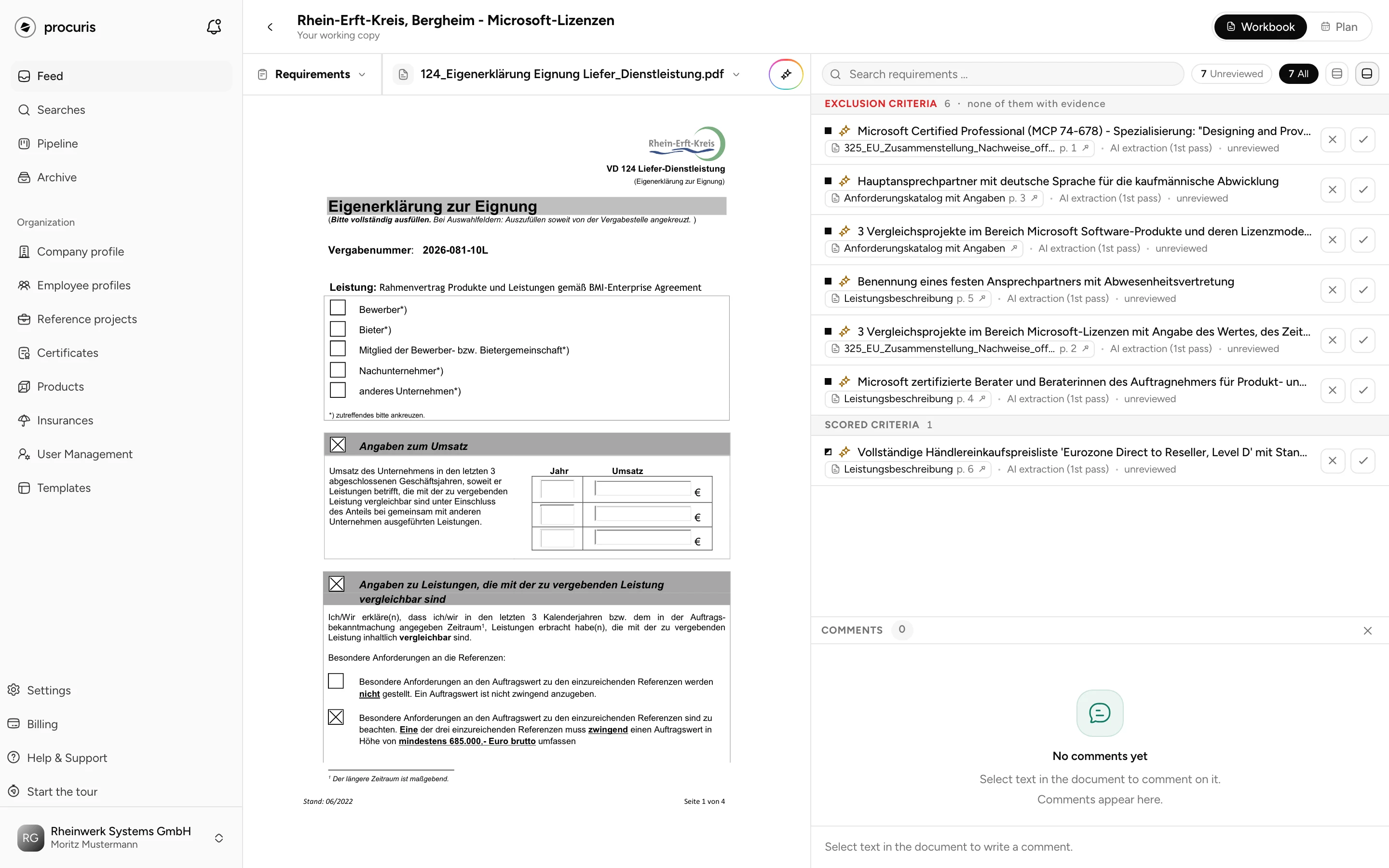
| Requirements | Capture the conditions from the documents that your bid has to meet. The document is on the left, the list on the right. |
| Suitability | Match your evidence to the suitability criteria of the contracting authority (the conditions without which your company may not win). |
| Fill in | Fill in forms and put the bid together. You edit Word, Excel and PDF files as a working copy. |
| Submission | Check the submission package against the submission checklist before you hand it in by the deadline. |
| Bidder questions | Ask the contracting authority questions. The module is listed with the label On request (see below). |
How requirements come about
A requirement comes about in two ways:
- You mark a passage. In the document on the left, you choose Exclusion or Scored. Exclusion means: whoever does not meet the condition is out. Scored means: the condition counts towards the evaluation of the bids.
- The agent reads the documents. It writes the requirements into the list. A run takes a few minutes, depending on the size of the documents. You follow its steps in the chat. Under Written by, these rows show Recognized from the tender documents.
You write comments on a marked passage. With @ you mention colleagues. The steps in detail are on Capture requirements.
In the Suitability module you then match certificates, references and profiles to the exclusion criteria, that is the requirements of the kind Exclusion, until no evidence is missing.
Evidence shown in red and struck through, with the addition expired, is a certificate or an insurance whose validity ended before today. It stays visible but does not count as evidence, even when it is mapped to a requirement. On the detail page and in the presentation it does not count as evidence either. The last day of validity still counts. Enter the new validity date in the company profile, and the evidence counts again.
Starting the agent in a module
On the right of the row above the document there is a button with a spark inside a coloured frame. Its label tells you what a click starts:
| Module | Button | What the click does |
|---|---|---|
| Requirements | Extract requirements | The agent reads the tender documents and writes the requirements. |
| Suitability | Map qualifications | The agent proposes evidence from your company profile. |
| Fill in | Prefill documents | The agent enters details from your profile into the form as proposals. |
| Tender documents | Procuris KI | Asks the chat for an overview of the tender documents. |
| Submission | Procuris KI | Asks the chat whether the submission is complete. |
In a narrow window the button shows only the spark. What else the chat can do is on Chat.
You do not have to wait for the agent. When it is done, the open workbook loads the new results by itself. A short message gives the number, for example "14 requirements updated". If you are in another module at that moment, View in the message takes you there. The module with new results carries a dot in Switch module until you open it.
Plan
Plan shows what has to be ready by when. On this view the modules of the workbook sit on a deadline axis. At the top right you switch between Workbook and Plan (Plan).
Costing
On requestYou receive this service through an individual quote.Request a quote
In the Costing module you price the items of the bill of quantities (the list of required services with quantities and units). The costing sits in the same workbook as the documents and requirements of this tender. You get the module through an individual quote, after which procuris sets it up in your workbooks.
Bidder questions
On requestYou receive this service through an individual quote.Request a quote
You put bidder questions to the contracting authority during the procedure, for example because a passage in the documents is unclear. In the Bidder questions module you ask these questions and collect the answers for this tender. You get the module through an individual quote. Until then it is greyed out in the workbook, and Ask sales in the module opens the request.
Custom modules
On requestYou receive this service through an individual quote.Request a quote
If a work step of your company fits none of the modules, you get a module of your own for that process.