Plan
Keep track of the deadlines of a tender, add your own deadlines and assign the modules of the workbook to them.
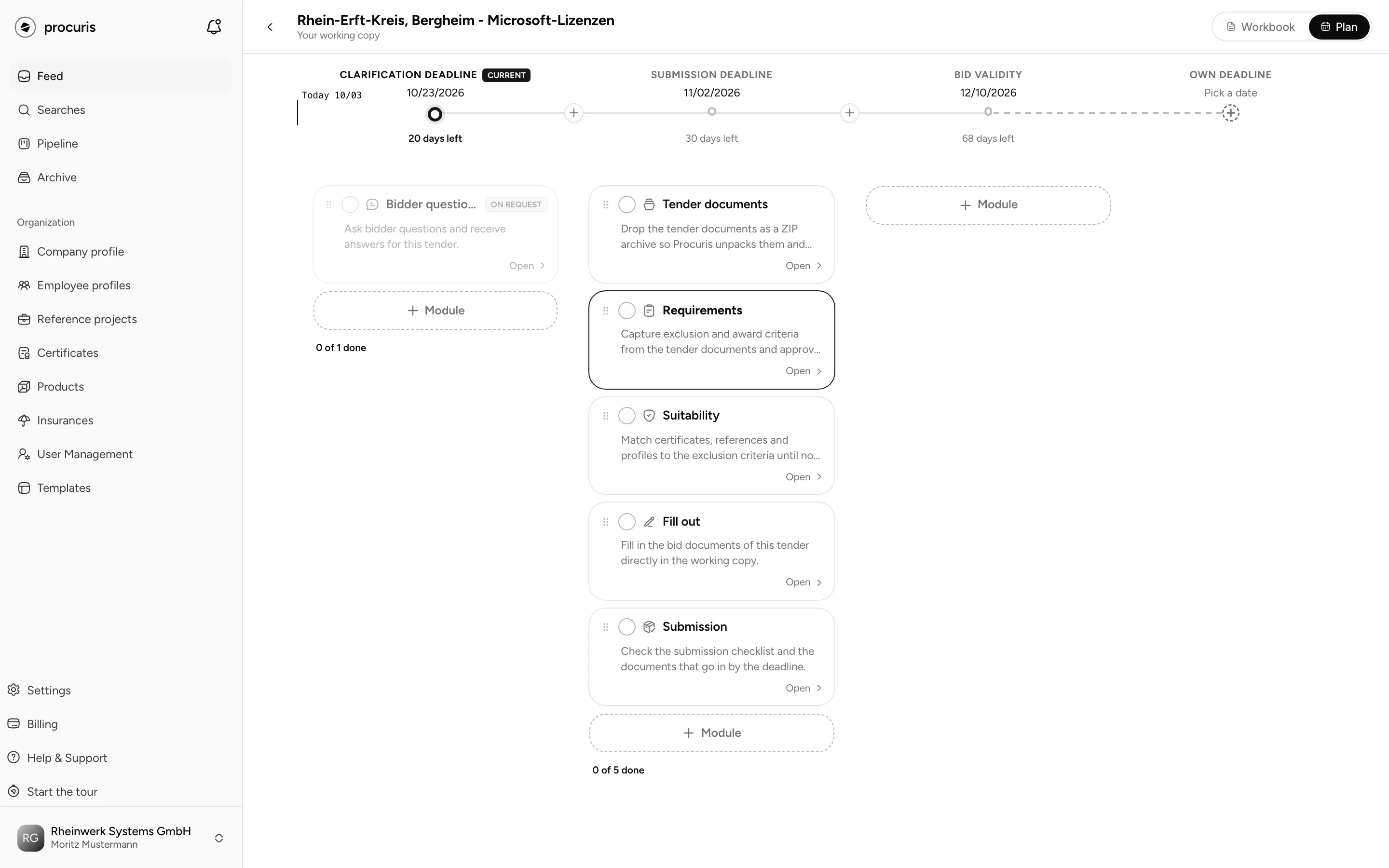
Plan shows the schedule of one tender on a single screen. At the top runs the deadline axis with the deadlines of the contracting authority and your own deadlines. Under each deadline sit the modules of the Workbook that should be ready by that day.
From Pro
You see Plan on every plan. Adding and removing your own deadlines, moving modules and ticking them off work from Pro on and during the Pro trial. On Free, each of these actions opens the window Workbook not in your plan with Upgrade to Pro, and nothing is saved.
Opening Plan
Plan belongs to a card in the Pipeline. The pipeline shows your tenders in progress as a board with columns and cards.
At the top right, click Plan. Workbook next to it takes you back to the modules.
From inside a module, Switch module also leads to the plan: Open Plan sits at the bottom of the list.
What the deadline axis shows
Each deadline is a column. At the top you see its name and date, below them its state. The columns follow the calendar, the earliest deadline is on the left. Plan shows each date as a calendar day in German time, even when you work abroad.
| Label at the deadline | Meaning |
|---|---|
| Current | the next deadline that is still open. The Today mark sits in its column. |
| 5 days left | days until the deadline, counted in calendar days |
| Due today | the deadline ends today |
| overdue | the date lies before today, and the deadline is not done |
| done | at least one module sits under the deadline, and all of them are ticked off. A greyed-out module below prevents done, see below. |
At the foot of each column you see the progress, for example 2 of 3 done.
Where the deadlines come from
procuris takes four deadlines from the contract notice of the contracting authority:
- Participation deadline: by then you hand in the request to participate in a two-stage procedure.
- Clarification deadline: by then you can ask the contracting authority questions about the documents.
- Submission deadline: by then you hand in your bid.
- Bid validity: until then you are bound to your bid.
A deadline appears on the axis only if the notice gives a date for it. A tender without a clarification deadline therefore has no Clarification deadline column.
At the start, each module sits under a deadline that procuris proposes. This needs at least one deadline with a date. Without one, for example for a tender you created yourself without deadlines, Plan shows no modules at first, and Switch module lists them under Without a deadline. Add your own deadline in that case (see below). The modules then sit under it.
The Bidder questions module appears greyed out with the label On request and cannot be ticked off. You get it through an individual quote (Bidder questions).
A greyed-out module keeps its deadline open. Bidder questions starts under the clarification deadline (without one, under a neighbouring deadline). As long as it sits there, that deadline does not show done, even when you have ticked off all other modules under it. Drag it therefore under a deadline whose state you do not track, for example the bid validity.
Adding your own deadline
Your own deadlines suit internal dates, for example an internal hand-in two days before the submission deadline.
On the right of the axis, click Own deadline. Alternatively click the plus between two deadlines (Insert deadline here).
Name and date are required. Without a name, Add creates nothing. Without a date, the calendar opens instead. The date decides the place on the axis, not the plus you started from. Below the date you see in advance where the deadline lands, for example "Goes between Clarification deadline and Submission deadline." A date before today is allowed, Plan points it out with "The date is before today."
Changing or removing a deadline
You cannot move or delete the deadlines of the contracting authority. They follow the contract notice.
You remove your own deadline with the bin at the foot of its column (Remove deadline). Its modules then move to the end of a neighbouring deadline. Check afterwards where they sit. Name and date of your own deadline cannot be edited. To move your own deadline, remove it and add it again with the new date. Then drag the modules back under the new deadline.
Assigning and ticking off modules
What you move on the plan are modules, not deadlines.
- Drag: drag a module card under another deadline or to another place in the same column.
- Without dragging: at the end of a column, click Module. Under Place module you pick the module. The list shows which deadline it currently sits under. The module moves to the end of this deadline.
- Tick off: the circle on the left of the module card marks the module as done. A second click resets it.
- Open: a click on the module card opens the module in the workbook.
Who sees your changes
The plan belongs to the card, not to you. Your own deadlines, the placement of the modules and the ticks apply to the whole organization, there is no personal plan. Colleagues see your change as soon as they reopen the workbook, reload the page or return to the browser tab with procuris. What members may do in the organization is on User management.
Your own deadline also shows outside Plan. If it is the next upcoming deadline by date, it appears on the card in the pipeline. The card looks only at the date, not at the ticks: a deadline marked done stays there until its day has passed. procuris sends reminders only for the four deadlines of the contracting authority, though. The members of your organization get them by email and in the app, 14, 7, 3 and 1 day before and on the day itself. Your own deadlines get no reminder. After a No-Bid, the reminders for this card end until you take the decision back or switch to Bid (Pipeline).
You can pass on a link to Plan. It opens Plan for the recipient as well, instead of the modules.
When the contracting authority changes the submission deadline
Plan reads the deadlines of the contracting authority from the tender data each time it opens. When procuris takes over a changed submission deadline from an amendment to the contract notice, Plan shows the new date. The column moves to the place the new date decides. Your modules stay under it. The reminders follow the new date as well. Your own deadlines stay where they are.
When procuris detects such an amendment, the members of your organization get an email with the subject "Amendment:" and the title of the tender, plus a notice in the app. The email gives the old and the new value. In procuris you see the change on the card: a click on the card in the pipeline opens its detail view on the right. There, under Deadlines & Dates, the old value appears struck through behind previously. The list of all changes (Notice Amendments) appears only in the preview in the feed, in a saved search or in the archive, not on the detail page (Tender in detail).
Check the submission deadline on the procurement portal before you submit anyway, because procuris does not capture every amendment. If the date differs, enter the correct one as your own deadline, for example "Submission deadline new", and drag the modules under it. The deadline of the contracting authority then stays with the old date, because you cannot change it.