User management
Invite colleagues, assign roles and remove access.
In User Management you invite colleagues into your organization, assign roles and remove access. You find it in the sidebar in the Organization group. Only people with the Owner role can invite, change roles and remove. People with the Administrator and Member roles see the same list without these buttons (Roles).
From Pro
On the Free plan you work alone. If you choose Invite User there, procuris shows your used seats instead of the form and offers Pro.
Invite a colleague
Enter your colleague's address under Email Address. The invitation applies only to exactly this address.
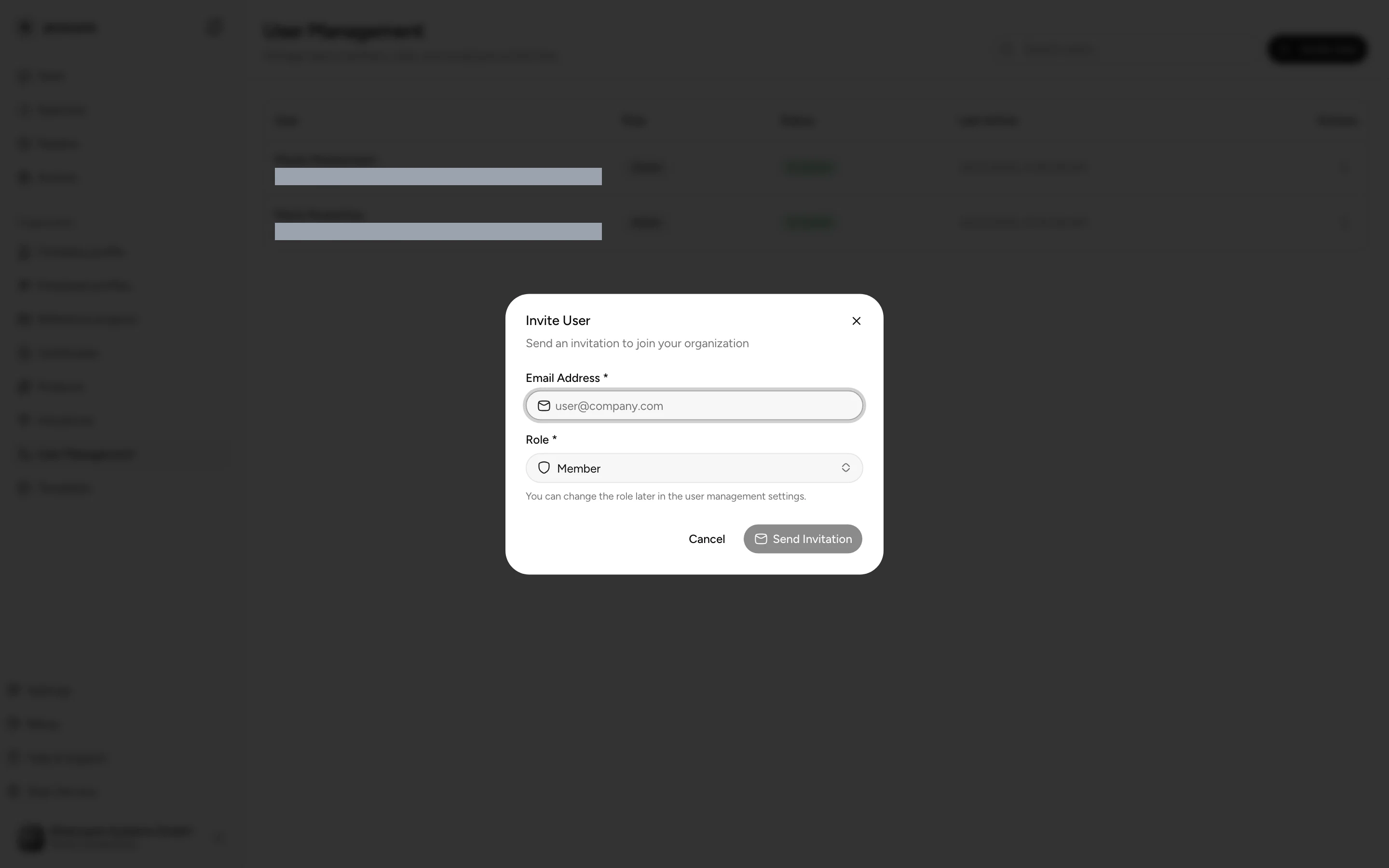
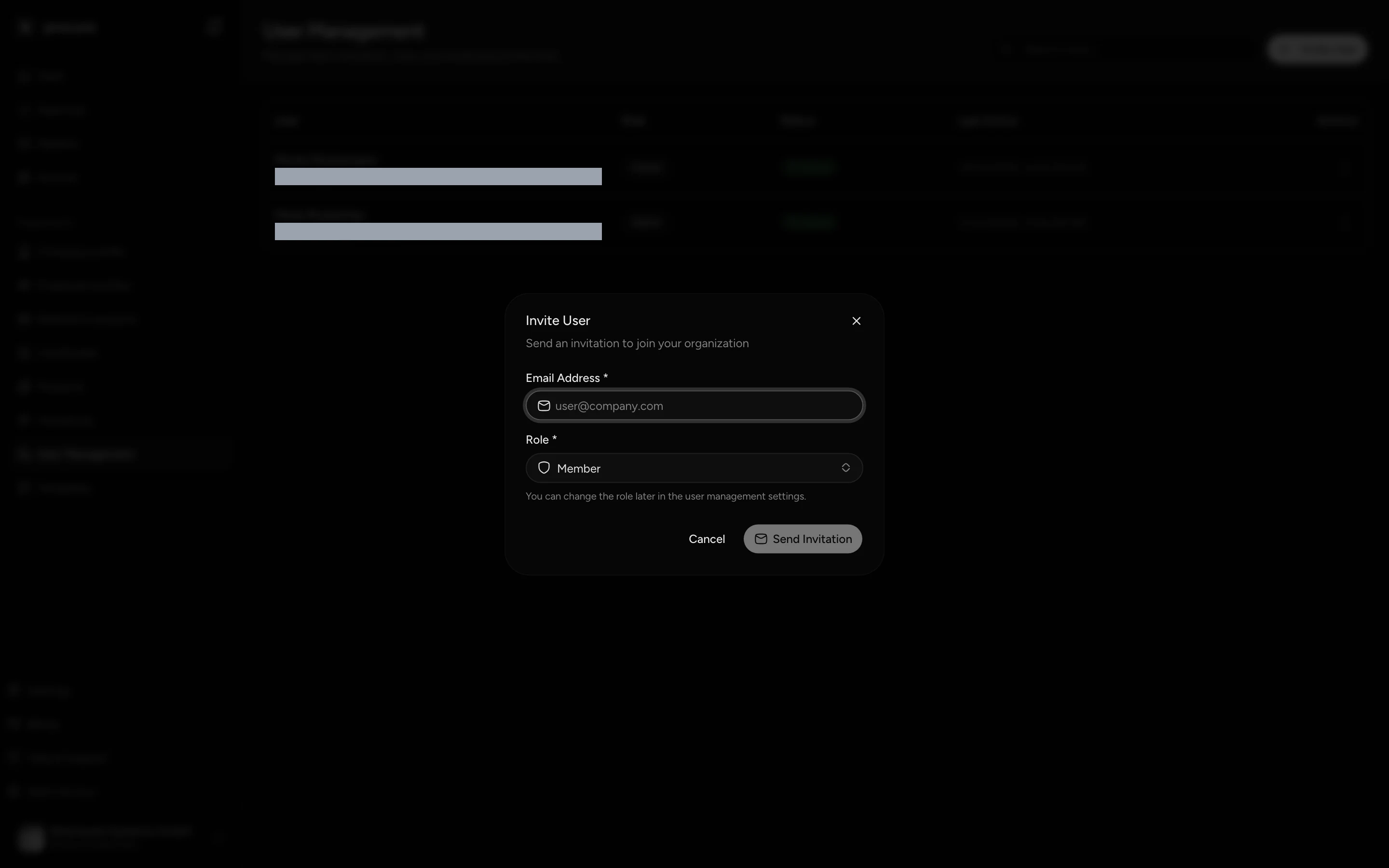
Under Role, choose Member or Owner. Member is enough for daily work. Make only people owners who manage users and the plan, because an owner can also remove other owners.
procuris shows "Invitation sent successfully". The invitation then appears under Pending Invitations, with the role and the time after Expires. Your colleague receives an email with the subject "You were invited to …", with the name of your organization in place of the dots. If they already have a procuris account, the email comes in the language of that account, provided one is set there, otherwise in yours. In German the subject reads "Einladung zu …". The invitation is valid for 48 hours. How your colleague accepts it is described under Getting started.
If procuris refuses the invitation, it names the reason:
| Message | What you do |
|---|---|
| "This user is already a member of the organization." | The person is already in the list. The search field Search users... finds them by name or address. |
| Limit reached with the number of used seats, or "All seats of this organization are taken or already invited." | Your plan is full. Remove a person who no longer works with you, or change the plan. |
| "The trial allows up to 3 invitations" | Your Pro trial is full. Instead of the invitation dialog, a dialog with this heading and the sentence "Talk to us to add more people." opens. Enter your Phone number and choose Send request. |
| "This invitation is not possible right now under your organization's rules." | Write to support@procuris.eu and name the address you wanted to invite. |
If a colleague asks to be admitted herself, for example because she signed up with an address of your company, her request appears under Join requests. There you choose Approve or Decline (Organization and access).
How many people your plan allows
Every person in the list takes one seat, including you.
| Plan | People in the organization |
|---|---|
| Free | 1, only you |
| Pro | up to 3 |
| Business | no cap |
| Enterprise | by contract |
In the Pro trial you invite up to 3 people, which makes 4 including you. Pro itself carries 3 people. If an organization on Pro still has 4 people after the trial, one person is left without a seat and sees "Your access to … is paused" (Access paused). Remove a person first or choose Business (Plans). The Usage page shows how many seats are taken.
Roles
An organization knows three roles: Owner, Administrator and Member. When you invite someone or change a role, you choose only between Owner and Member. Administrator comes about in a single way: whoever hands over the holder role stays in the organization as an administrator (Hand over the holder role). There is no read-only role. All three roles work with tenders, profiles and projects alike, the difference lies in administration.
| What | Owner | Administrator | Member |
|---|---|---|---|
| View and edit tenders, pipeline, workbooks, company profile, references and templates | yes | yes | yes |
| View the list of users and Member details | yes | yes | yes |
| Invite users, resend or withdraw invitations | yes | no | no |
| Change roles and remove users | yes | no | no |
| Approve or decline join requests | yes | no | no |
| Change name and logo of the organization | yes | yes | no |
| Change the plan under Billing | yes | yes | no, the page shows "Only owners and admins can change the plan." |
| Request services under Settings › Organization in the On request section | yes | yes | yes |
| Delete organization | yes | no | no |
| API access, Webhooks and Single sign-on under Settings › Organization | yes, once set up | no | no |
Among the owners, only the person responsible for the plan sees Hand over holder role (Hand over the holder role).
You get API access, webhooks and single sign-on through an individual quote. Every person in the organization may request them (Settings). The areas for managing them appear only once the access has been set up after the contract is signed. Before that they are not visible. From then on owners manage them themselves (Integrations).
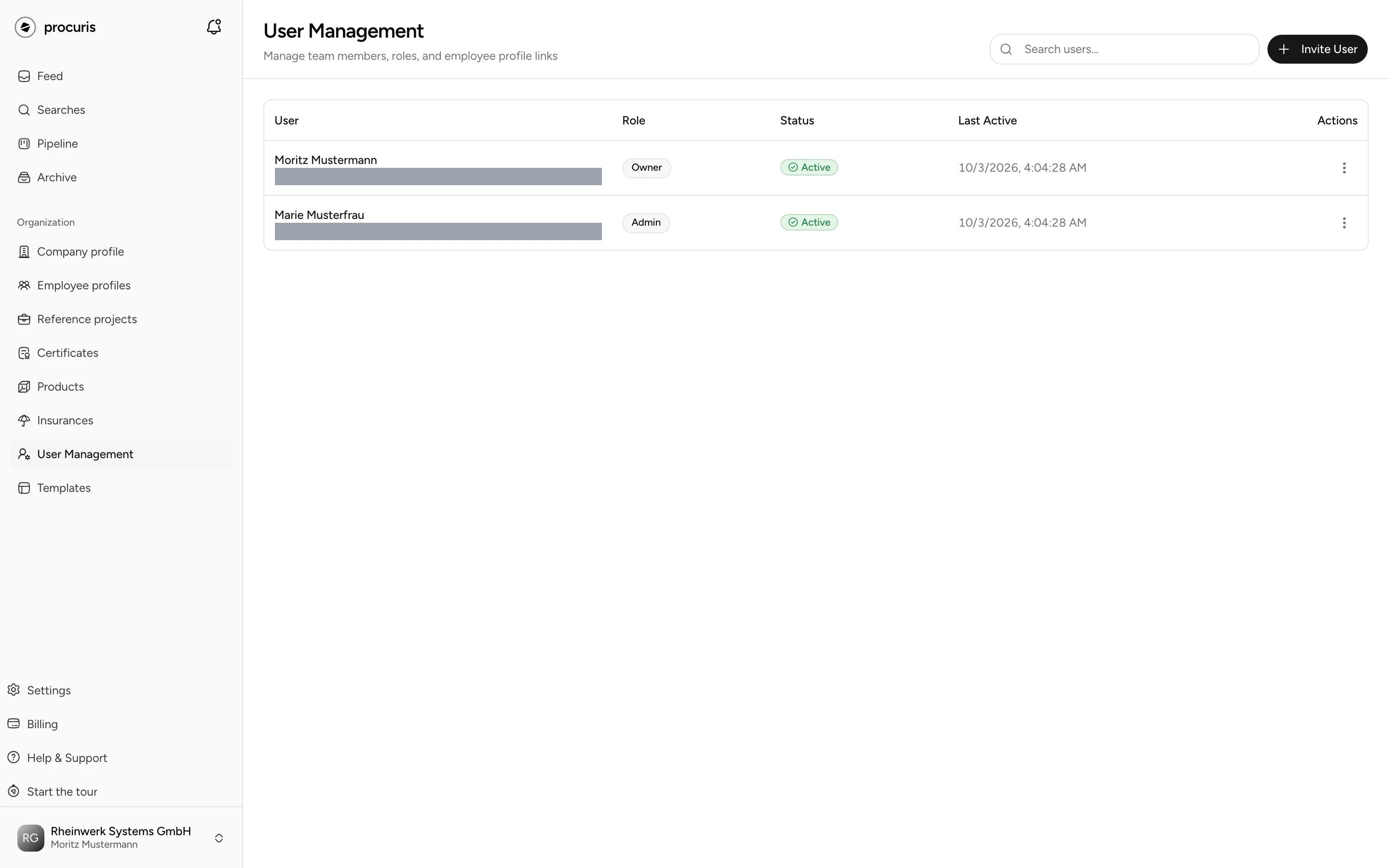
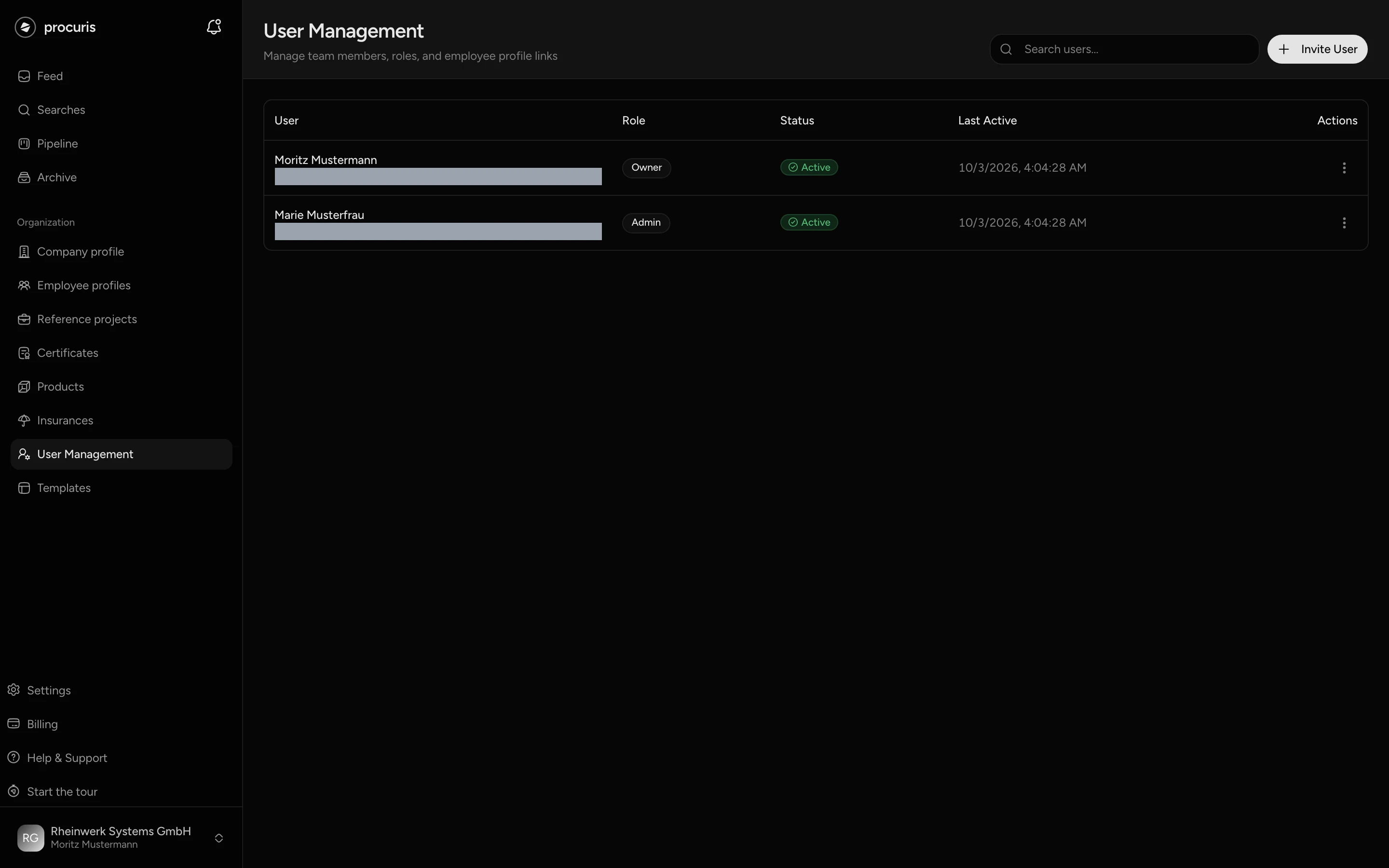
The Role column of the list names the role the same way as Member details: Owner, Administrator or Member. Under Status, every person in the list shows Active. The Joined column shows the day the person joined the organization. Member details names the same day under Member since. The list does not show when someone last worked in procuris.
Change a role
Choose the person's name in the list. Member details opens on the right.
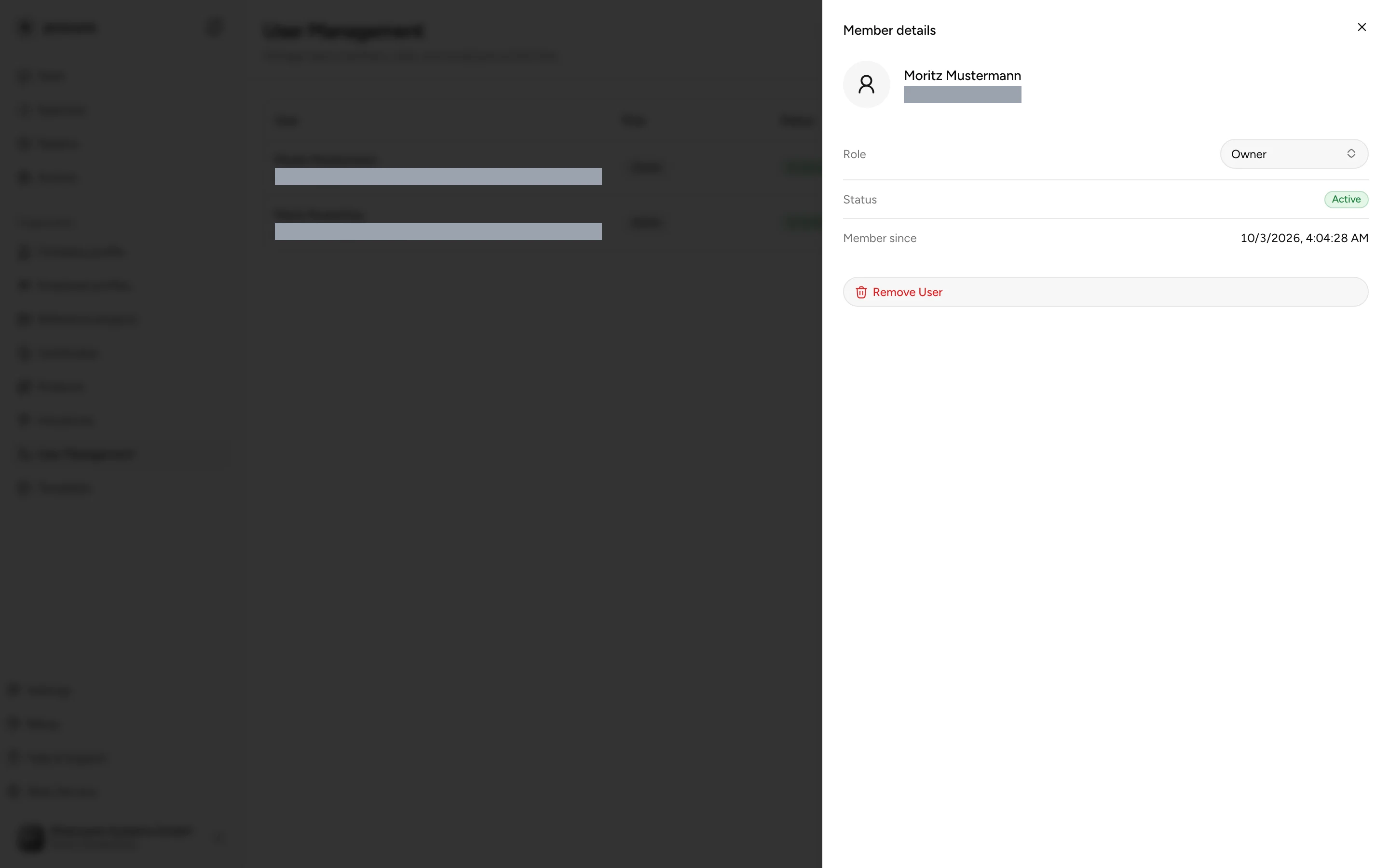
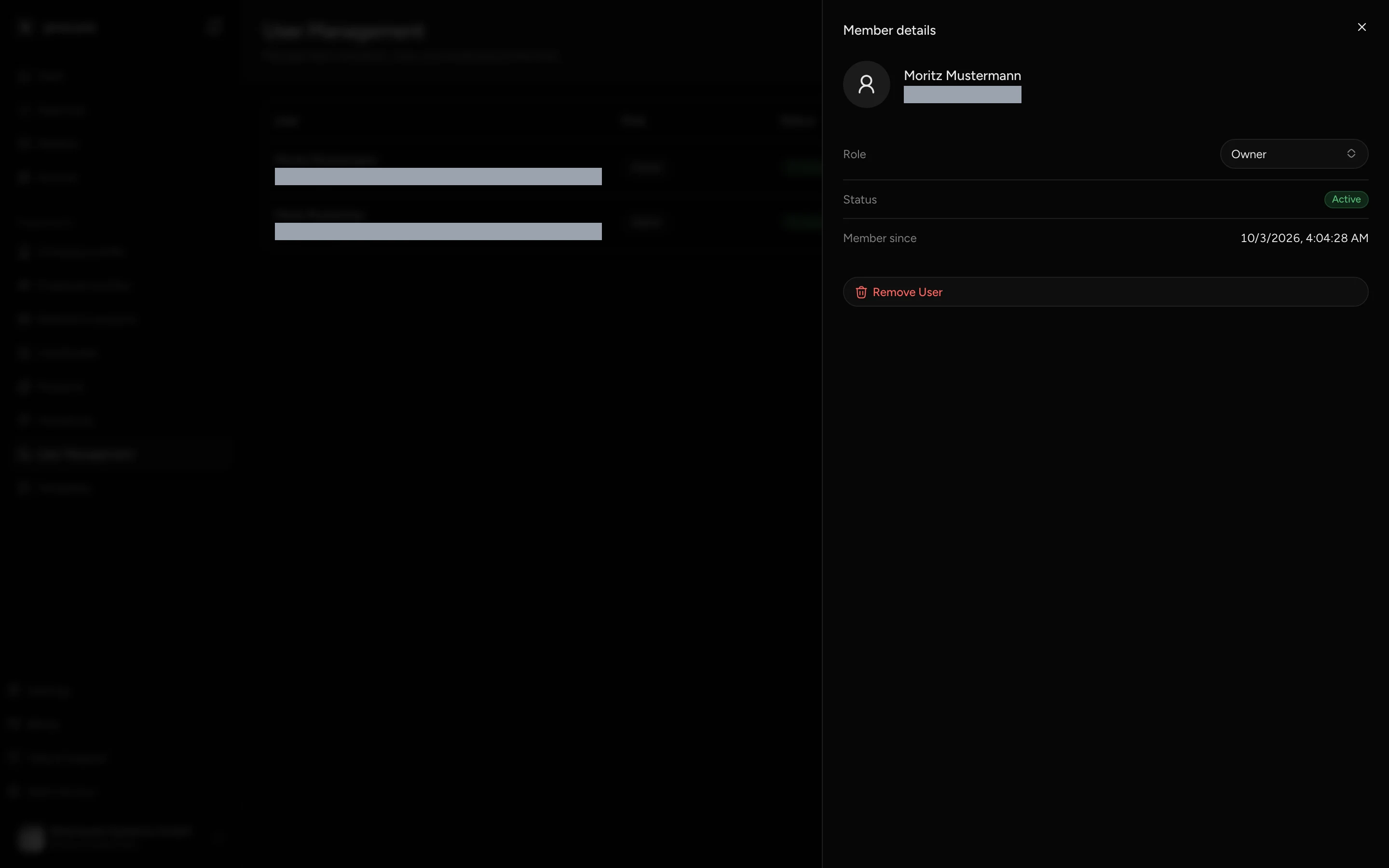
The new role applies as soon as you pick it, without a confirmation. The same way you make an administrator an owner or a member. You cannot make anyone an administrator directly. An organization keeps at least one owner, so procuris refuses to make the last owner a member.
Hand over the holder role
Several people can be owners. One person, however, is responsible for the plan, at first the person who created the organization. If you give up this responsibility, for example because a colleague takes over billing, hand over the role.
Choose Hand over holder role at the top right. The button appears only for the responsible person and only if a colleague with a confirmed email address can take over the role.
Your colleague is then an owner and responsible for plan and organization. The dialog says so beforehand: "You stay a member as an administrator." You then appear in the list as Administrator. As an administrator you still change the plan, name and logo, but you no longer manage users (Roles).
Remove someone
In the person's row, open the menu with the three dots under Actions. Alternatively, open Member details via the name.
procuris does not ask again. The person leaves the organization with the click, and their seat is free. If they should come back, invite them again. procuris does not remove the last owner.
The person's work stays in the organization:
- Cards, workbooks, requirements and comments stay as they are. The other members keep working on them.
- Saved searches the person created keep running. The morning mails go to the members who are still in the organization. The removed person no longer receives any.
- In the Team section of a card, the person stays entered as assignee. Assign these cards to a colleague via Assign person (Pipeline).
The person keeps their procuris account. They no longer see your organization in it.
If the invitation does not arrive
Check the address and the time after Expires under Pending Invitations. If the invitation is missing there, it has expired or was already accepted. If your colleague is not in the list of users, invite her again.
Ask your colleague to search her spam folder for the name of your organization. The subject is "You were invited to …", in German "Einladung zu …".
Choose Resend in the row of the invitation. procuris sends the same invitation again, shows "Invitation resent successfully" and extends the validity to 48 hours from that moment.
If the address is wrong, withdraw the invitation with the cross at the right of the row. procuris shows "Invitation cancelled". Then invite the correct address.
Use Resend instead of a second invitation to the same address while the invitation is in the list. A new invitation replaces the old one, and the link in the first email no longer works.
If your company filters incoming mail, ask your IT to allow mail from procuris.eu. If nothing arrives even then, write to support@procuris.eu and name your colleague's address and the name of your organization.