Record products
Record products with their features, so procuris compares them with the product requirements in tenders.
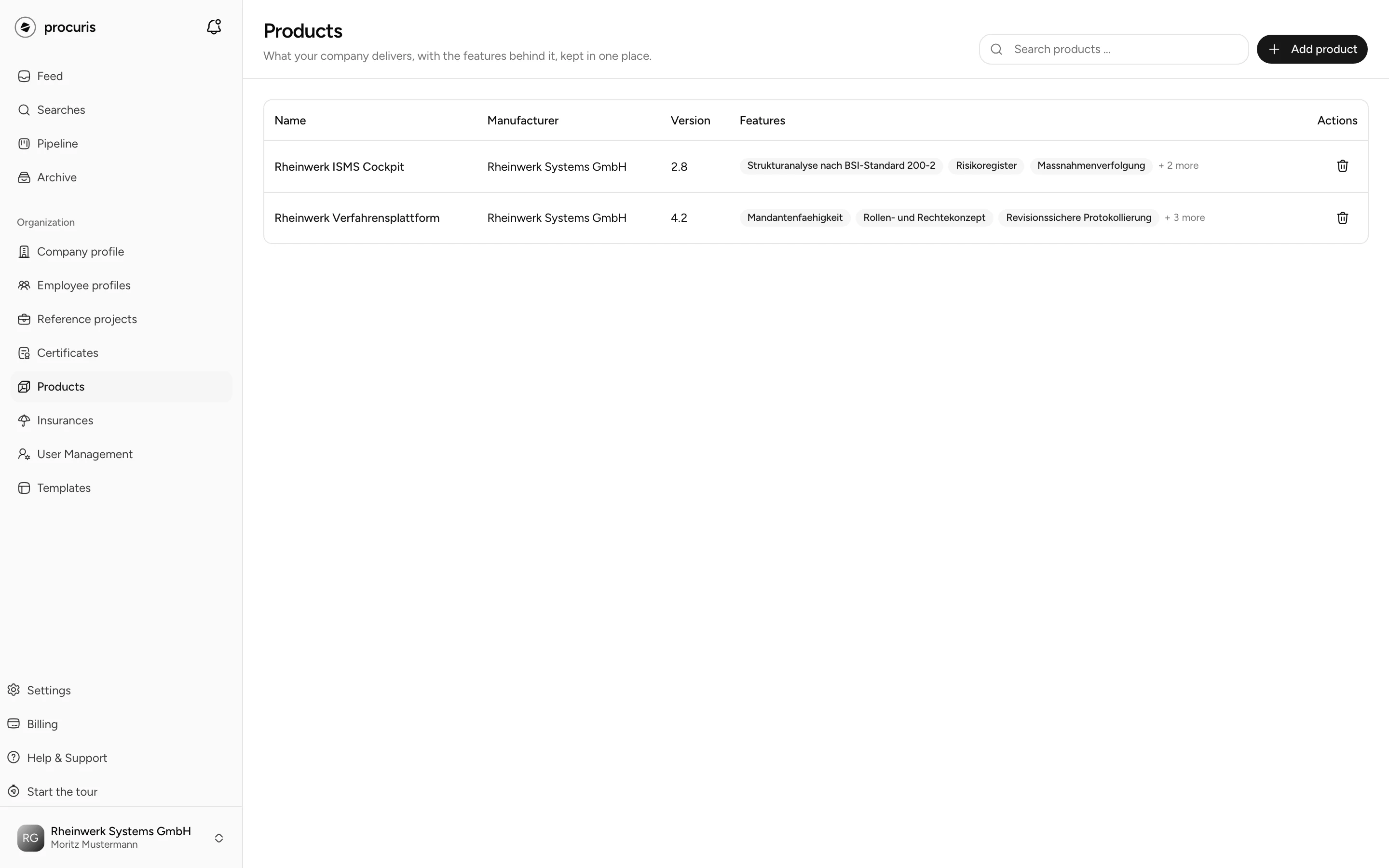
Under Products, you record what your company delivers, with the features tenders ask for. procuris compares these products with the product requirements in a tender and shows the result in the Suitability of the tender. You find the page in the sidebar in the Organization group under Products. It belongs to your company profile.
Matching from Pro
Matching tenders against your products only comes with Pro, including the Pro trial. Details on Plans.
Who products are for
Products pay off when tenders ask for a specific product. This applies to software, devices and systems whose features the contracting authority lists one by one, such as a fire alarm system with remote maintenance. The manufacturer does not have to be your company: if you supply or install products from other manufacturers, enter those as well.
If your company only provides services such as planning or construction, without supplying a specific product, you do not need this page. Your suitability is then proven by certificates, reference projects and the details in the company profile.
Create a product
The page only accepts entries once your company profile has been saved once. Before that, it shows Company profile missing and the button Open company profile.
Open Products in the sidebar and click Add product. The form opens on the right edge above the list.
Under Features, enter one feature per line. The Enter key opens the next line, and so does Add feature.
The product then appears in the list with name, manufacturer, version and the first three features, and the list counts further ones as "+ 2 more". After every create, change or delete, procuris rates the hits of your saved searches again against the new state.
Which details help
Features help most when they are named briefly. Write "remote maintenance" instead of "the system can be maintained remotely", because tenders ask for features in this short form. The form says so in its hint as well.
| Field | What goes in | Limit |
|---|---|---|
| Name | product name, as it appears on the data sheet | required, 120 characters |
| Manufacturer | who builds the product, your company or another one | 120 characters |
| Version | version or model number | 120 characters |
| Description | what the product is built for and who it addresses | 2000 characters |
| Features | one feature per line, as a short term | 50 lines, 120 characters each |
The counter next to Features shows how many of the 50 lines are in use. procuris does not save empty lines.
Change or delete a product
Clicking the name in the list opens the form. As soon as you change something, Unsaved changes appears at the bottom and Save becomes active. Cancel closes the form without saving. The trash icon in the list or in the form deletes the product after the Delete product confirmation. This cannot be undone.
The Search products ... field above the list searches name, manufacturer, description and features.
Read in a data sheet
You do not store a file on the product, the form has no field for it. Use a data sheet through the chat instead, which you use from Pro onward. Attach the data sheet there with Attach file and write, for example, "Add this product to the profile."
The chat names the file and asks whether it should add it to the profile. After your yes, it reads the file, reports read as product and creates the product with name, manufacturer, version, description and features. Whatever the sheet does not mention stays empty. If a product with the same name and manufacturer is already in the list, the chat does not create a second one. Go to the entry in the company profile opens the new product. Check the features there, because the chat takes them from the file. If you give it the details without a file, it repeats them and asks in the same way before entering them.
Product and tender
You do not map a product to a tender by hand. procuris compares your products with the product requirements and shows the result in two places:
- Suitability in the preview of a hit from a saved search: under a product requirement, it shows which of your products meets it, with a link to the product. If none of your products meets the requirement, Add product opens the form, even if other products are already in the list. If a product is missing in your profile, the requirement counts as not met. More under Tender in detail.
- Requirements in the workbook: the Product requirements section shows the product the contracting authority asks for, with the Product badge and its requirements below. The section only appears when a tender asks for a product. More under Record requirements.