Tender in detail
Where you find the deadline, buyer, value, lots, requirements and tender documents of a tender, and what you do from there.
You see a tender in two views. The preview opens to the right of the list as soon as you click a tender in the feed, in a saved search or in the archive. The detail page shows the same tender on a page of its own. You open it at the bottom of the preview with More Details.
The preview is for a quick check, the detail page for preparation. The preview shows suitability, team and changed dates. The detail page shows the tender documents even where the preview leaves them out, plus market analysis and similar tenders.
Where each detail is
| Detail | Preview | Detail page |
|---|---|---|
| Deadline | Deadline row at the top (in how many days), the dates under Deadlines & Dates | Submission Deadline, Bid Opening, Clarification Deadline, Bid Validity under Overview |
| Buyer | Buyer row at the top, address and contact in the Buyer section | below the title and under Overview |
| Value | Deadline row, after the number of days | Estimated Value under Overview, comparison under Market analysis |
| Lots | Procedure row (number), Lots section | Lots section |
| Procedure type and place | Procedure and Location rows, place of performance in the Buyer section | legal basis below the title, Place of performance under Overview |
| What is being procured | Description | Description |
| Award criteria | Award | Award |
| Requirements | Suitability (in the feed and in the saved search) | Requirements, grouped by type of evidence |
| Tender documents | Documents, only in the saved search | Tender documents |
| Notice on the portal | Source row | Source button |
| Type of work (CPV codes) | Classification | Classification under Overview |
| Contract term | Execution Period under Deadlines & Dates | Term under Overview |
| Changes to the notice | Notice Amendments, old dates struck through under Deadlines & Dates | not shown |
| Who works on it | Team row | not shown |
CPV codes are the numbers of the EU vocabulary for types of work. In the preview, the codes sit under their industry, each with its name, as far as the vocabulary lists one. If the notice does not contain a detail, procuris leaves it out instead of writing "Not specified".
Preview
The preview starts with the title and the actions next to it. Below are the rows Buyer, Location, Procedure, Source, Team and Deadline. You change the width of the preview by dragging its left edge. On screens narrower than 1024 pixels, the preview fills the screen in the feed and in the saved search.
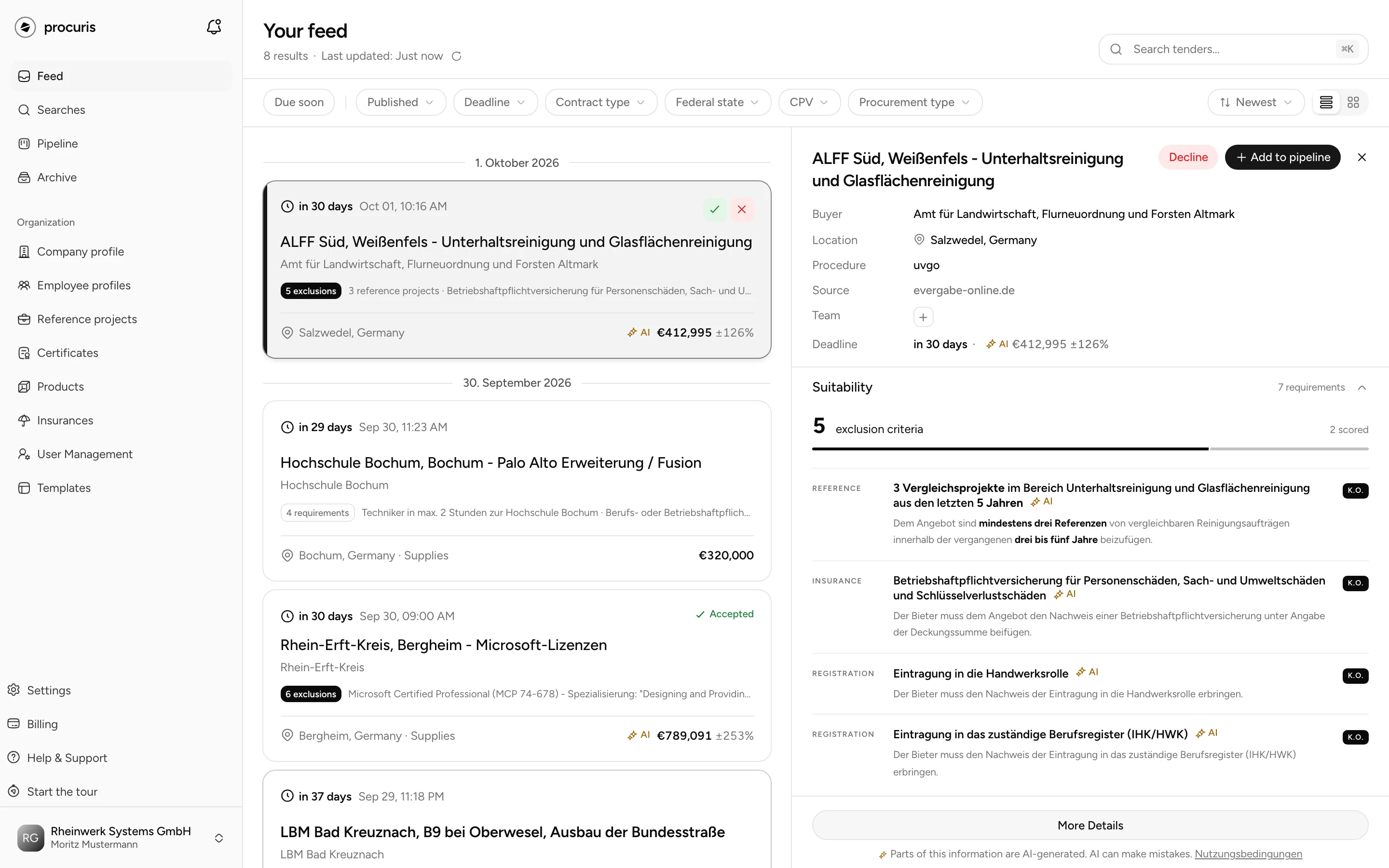
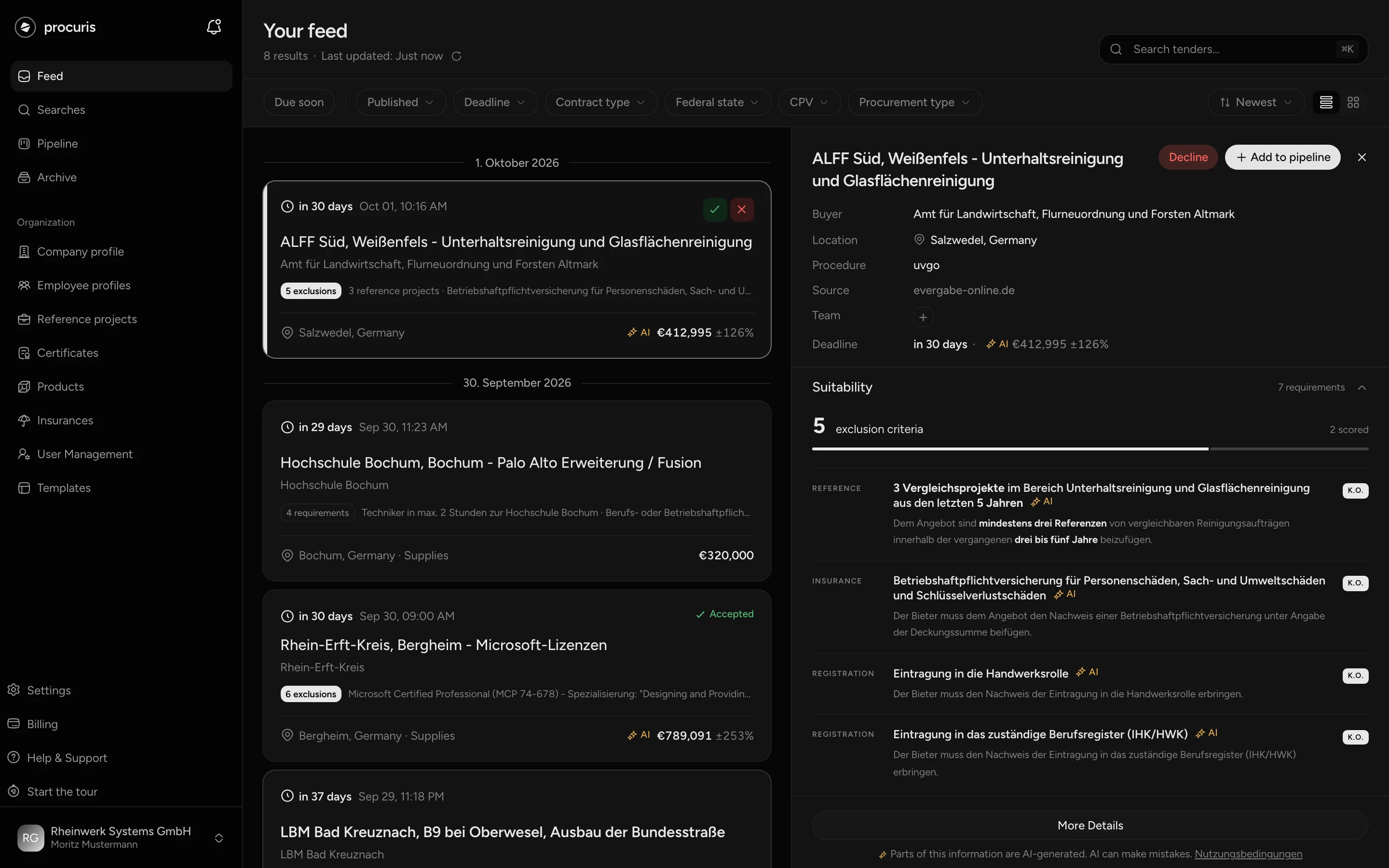
The deadline changes color when time gets short. At three days or fewer it shows in red, at four to 14 days in yellow. With more than 14 days it shows in the normal color. If the deadline has passed or the tender is in the archive, it reads expired in the normal color.
Below the rows come collapsible sections. A click on the heading opens or closes a section.
| Section | Content | When opened |
|---|---|---|
| Suitability | requirements of the contracting authority, see below | open |
| Description | what is being procured, cut after five lines, Show more shows the full text | open |
| Deadlines & Dates | Published, Clarification Deadline, Participation Deadline, Submission Deadline, Bid Opening, Bid Validity, Execution Period. If the contracting authority changed a date, the old value appears struck through after previously. | open |
| Award | award criteria with weighting, per lot if the lots differ from each other | open |
| Lots | lots with number, name and execution period. Missing if the tender is not divided into lots. | open |
| Buyer | name, address, contact with email and phone, place of performance, View map, other organizations involved | closed |
| Classification | CPV codes with industry | closed |
| Notice Amendments | changes the contracting authority published after the notice | closed |
| Documents | tender documents to download, only in the preview of a saved search | closed |
In the archive, the Suitability section, the Team row and Add to pipeline are missing, because the deadline of these tenders has passed.
Suitability in the preview
From Pro
On the Free plan, the Suitability section shows two requirements in full, and the next ones fade out. Below them you see how many requirements the tender has, and See Pro shows what Pro includes. During the Pro trial, the heading shows Pro, trial until with the end date.
The Suitability section lists what the contracting authority asks of bidders. It sits at the top because this question decides before all others. At the top it gives the number of exclusion criteria, or the number of requirements if there are no exclusion criteria. Next to it you see how many requirements are scored. Exclusion criteria are conditions without which a bid is excluded.
Each row shows the type of evidence on the left, such as certification, reference or revenue. In the middle is the requirement, with the values asked for below it. On the right it says K.O. if the requirement excludes. After a few rows the list collapses, and All 14 requirements shows the rest. If requirements appear only in the tender documents and not in the notice, a line below the list names their type: "Described only in the tender documents".
What else the section shows depends on where you open the tender:
| Opened from | From Pro |
|---|---|
| Feed | requirements, and below them Check against your profile with the saved search that contains the tender. If none contains it: The match runs through your saved searches with Create saved search. Without captured requirements, the section is missing in the feed. |
| Saved search | your suitability as a percentage and, for each requirement, whether your profile meets it. Where evidence is missing, a link such as Add certificate takes you to your profile. |
| Archive | no Suitability section |
In the saved search, each requirement shows Reject and Confirm when you hover over it. Use Reject to report a row that is not a requirement or quotes it wrongly. If the row is already fully covered by evidence from your profile, Confirm confirms that mapping in one click. On all other rows, Confirm opens the Confirm requirement window with the question "What meets this?". There you can optionally assign evidence from your company profile.
The colors of suitability and what unsure or Not assessed mean are explained in Fit and threshold.
Fit at the top of the preview
If you open a hit from a saved search with an activity description, the Fit appears below the title. It is the same number as on the card in the list of hits. The number from 0 to 100 shows how well the tender fits your company. If it is missing, the activity has not been assessed yet, the saved search has no activity description, your plan is Free, or you opened the tender in the feed, which shows no fit. More on this in Fit and threshold.
Detail page
You open the detail page in three ways: with More Details at the bottom of the preview, with View full details on a card in the pipeline, or with a click on a row under Similar tenders. In the archive on screens narrower than 1024 pixels, a click on a tender already opens the detail page. When you open it, the tender counts as read.
The link at the top left takes you back, but not in every case to where you came from. From the pipeline it reads Pipeline, from the archive on screens narrower than 1024 pixels Archive. In all other cases it reads Feed and takes you to the feed, even if you came from a saved search or the archive via More Details. You get back to the saved search with your browser's back button.
The header shows the title and, below it, the buyer, reference number and legal basis. While the submission deadline is still open, the number of days left appears next to it, for example 12 d. In two-stage procedures, the participation deadline counts as long as there is no submission deadline yet.
By default, the wide column is on the left and the narrow one on the right:
| Section | Column | Content |
|---|---|---|
| Overview | left | Buyer, Estimated Value, dates, publication date, term, place of performance, classification |
| Description | left | what is being procured |
| Requirements | left | requirements grouped by type of evidence, such as references, certificates, revenue. If the tender is in the pipeline, each requirement shows its status from the workbook: met, in progress or open. |
| Lots | left | lots with execution period |
| Award | left | weighting of the award criteria as bars per lot. "published without weighting" means that the contracting authority named criteria without shares. |
| Tender documents | left | files to download, see below |
| Market analysis | right | value distribution of comparable tenders with the position of this tender, below it the Award winners of comparable tenders with their contract value |
| Similar tenders | right | comparable tenders with a match in percent |
A section without content says so in one line, for example "No comparison group" if there are too few comparable tenders.
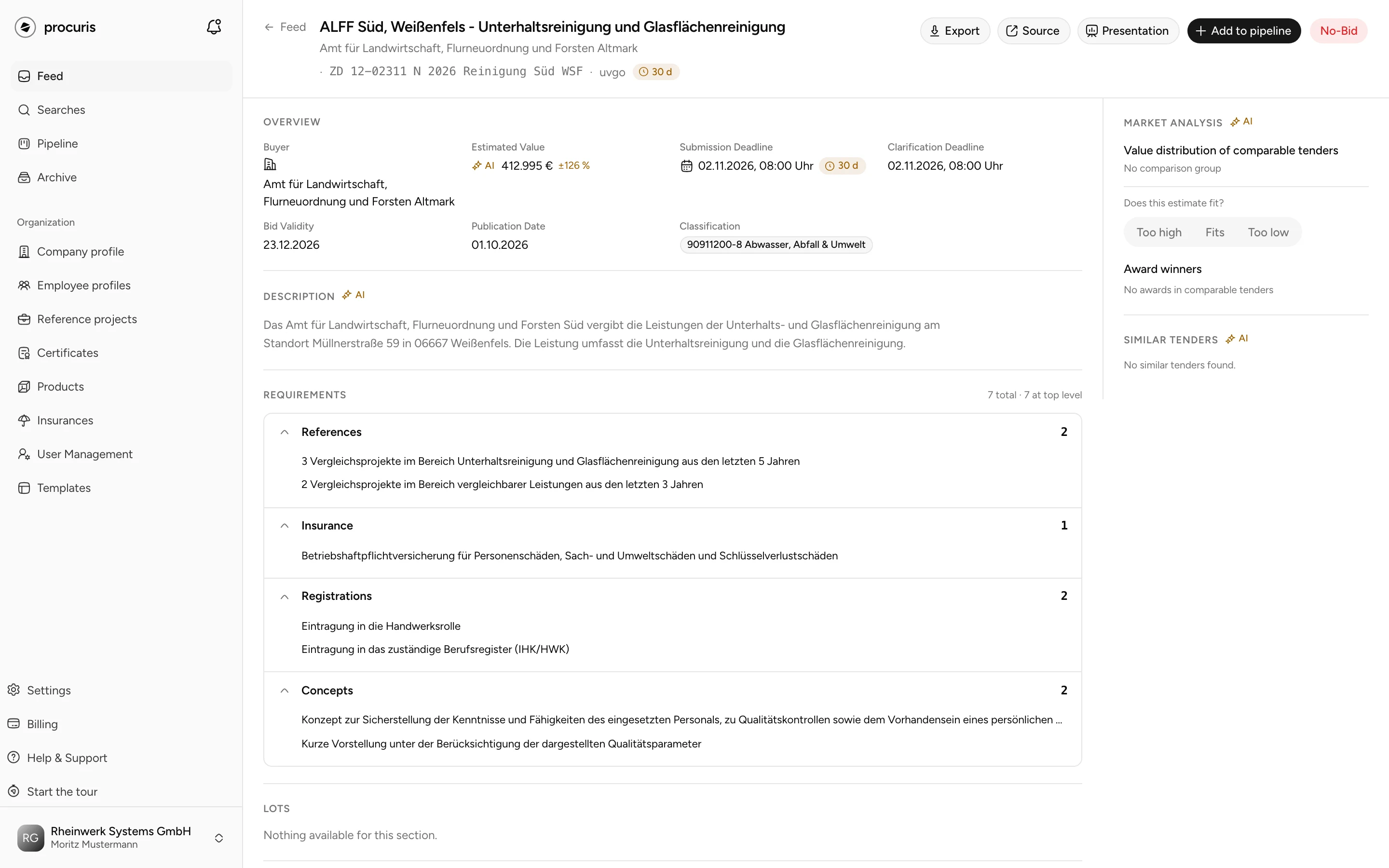
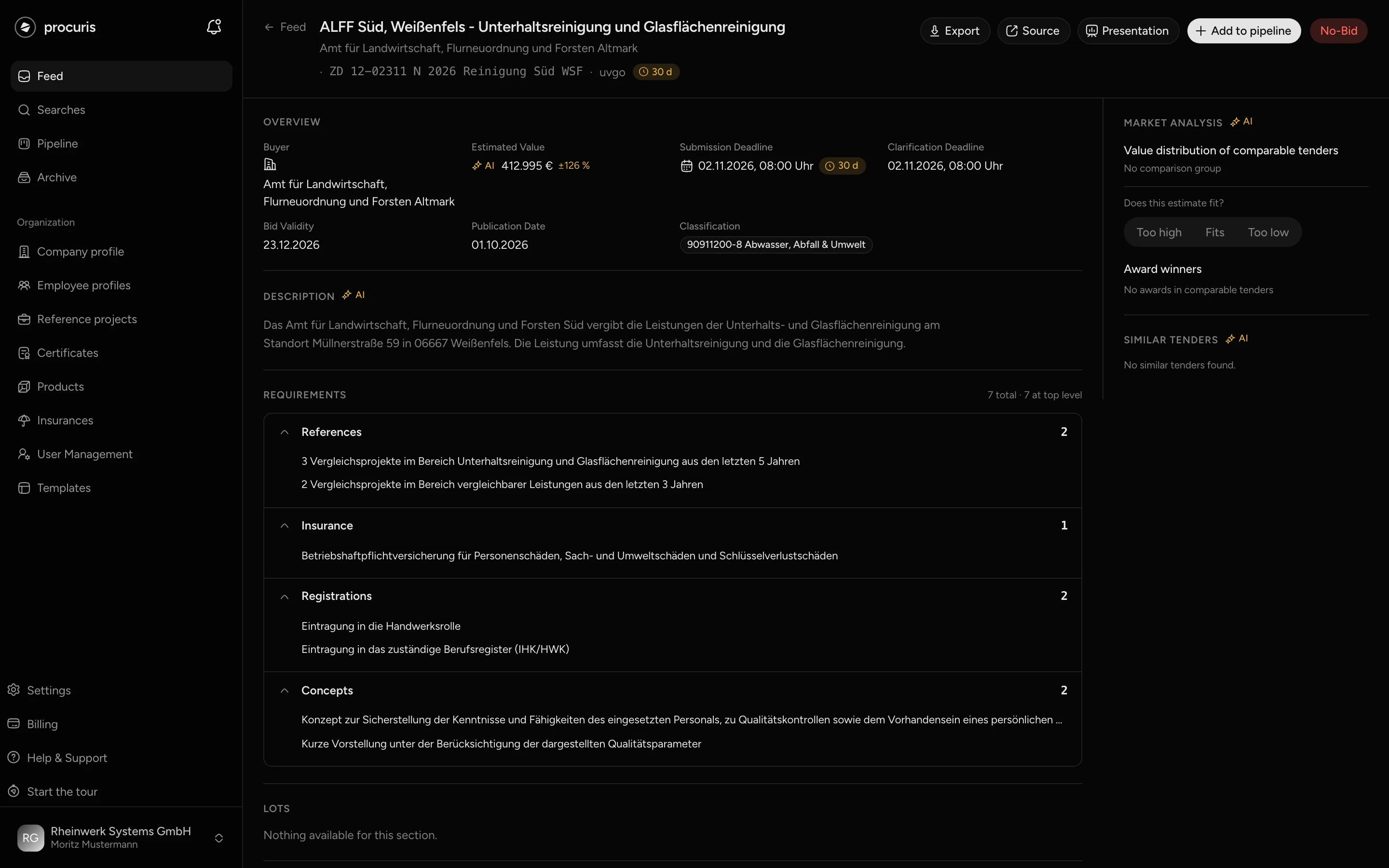
Your organization decides under Templates which sections appear in which column. If your detail page differs from the table, a template of your own applies there, described in Templates and dashboards.
Tender documents and the original notice
The tender documents come from the contracting authority. If procuris holds the files, you download each one with a single click. Download All fetches them as a ZIP archive. If no files are available, you see links to the documents on the procurement portal, in the preview as View tender documents. Without files and without links, the Documents section is missing in the preview, and the detail page says "No documents available".
You open the notice on the procurement portal via Source. In the preview this is a row with the name of the portal, on the detail page a button at the top right. It is missing if the notice gives no link. In the feed and in the archive, the preview offers no files, and Source takes you to the original there.
If you created a tender in the pipeline yourself, the tender documents are the files you uploaded when you did so. How that works is described in Pipeline. To work on the documents, use the Tender documents module of the workbook.
Details marked AI
The AI mark appears on details that procuris added instead of taking them from the notice. This applies, for example, to a date, the procedure type or the description. On the value, AI means that procuris estimated the value. The figure after it, such as ±15 %, gives the range of the estimate. Under Market analysis it appears in the legend as Estimate range ±15 %. There, for an estimated value, the detail page asks Does this estimate fit?, and you answer with Too high, Fits or Too low.
Check details with this mark against the notice before you rely on them. At the bottom of the preview you see the note "Parts of this information are AI-generated. AI can make mistakes."
Actions
| Action | Where | What happens |
|---|---|---|
| Add to pipeline | preview and detail page | A window asks for Stage, Assign to and Note (Optional), then the tender sits as a card in the pipeline. |
| Open pipeline | preview, if already in the pipeline | opens the pipeline with this card |
| Edit in workbook | detail page, if in the pipeline | opens the workbook, the work area for this tender |
| Decline | preview, as long as nothing is decided | You give a reason, the tender stays in the list and shows its status. You can take the decline back. |
| No-Bid and Bid | detail page | records your decision with reasons. Bid exists only for cards in the pipeline. Afterwards the button shows the decision with its date, and a click on it offers Edit reasons and Take the verdict back. |
| + in the Team row | preview | assigns colleagues. If the tender is not in the pipeline yet, procuris first creates the card for it. |
| Export | detail page | copies title, reference number, buyer, deadline, estimated value and description as text to the clipboard |
| Presentation | detail page | opens the tender as a slide deck in full screen. You page through with the arrow keys, F toggles full screen, Esc closes. |
To share, paste the text from Export into an email. For colleagues in your organization, send the address of the detail page from the browser instead. How decisions continue on the card is described in Pipeline.
Notes on a tender sit on its card in the pipeline, not in the preview or on the detail page. You can write the first note when you add the tender to the pipeline. More on this in Notes.