Fit and threshold
What the fit from 0 to 100 tells you about a hit and how the threshold orders your hit list and the mail.
The Fit shows how well a tender suits your company, as a value from 0 to 100 percent. The higher the value, the better the hit suits you. You see the fit in the hits of your saved searches with an activity description: on the cards of the hit list and at the top of the opened tender. The Threshold sets from which fit a hit stands at the top of the list and goes into the mail.
From Pro
Fit and threshold come with Pro, including the Pro trial. On the Free plan the card shows the word Fit with the Pro badge instead of a number. A click on it shows what Pro includes. Details on Plans.
What the fit is made of
The fit joins two questions into one number:
- Activity: Does the tender match what your company offers? The basis is the activity description in your saved search.
- Suitability: Does your company meet the required proofs? This means the suitability criteria, the conditions the contracting authority sets for certificates, references and experience. The basis is your Company profile and your proofs under Certificates, Insurances, Reference projects and Employee profiles.
The fit helps you decide which hits to read first. It does not replace your own review of the tender documents.
The Feed shows no fit. When you open a tender there, a note leads to the fit: Under Check against your profile, a link with the name of the saved search leads to the saved search that contains this tender. If no saved search contains it, the note reads The match runs through your saved searches with the link Create saved search.
In the Pipeline, the detail view of a card has its own Fit section, though without the number from 0 to 100. It counts the met requirements, for example "7/12 requirements met", and names the exclusions in red, for example "1 exclusion". Below it, up to three open requirements are listed. On the Free plan the section is locked.
Colors and marks
The number is green. Whether an exclusion looms is shown by the red word exclusion behind it:
| Display on the card | Meaning |
|---|---|
| Green number with Fit | The fit in percent. No exclusion detected. |
| Green number with Fit, followed by · exclusion in red | The fit in percent, plus a detected exclusion: according to your profile, at least one minimum requirement is not met. If that is true, the bid is excluded. |
| Only exclusion in red | An exclusion is detected, the activity is not judged yet. |
| No number | The activity is not judged yet. The hit still stands at the top. In a saved search without an activity description, it means instead: the suitability is not assessed yet. |
| Hit paler, below a line | The fit is below your threshold (see below). |
In the opened tender, the Suitability section sits below the fit. It lists the requirements of the contracting authority, each with a color:
- Green: met.
- Yellow: partly met or unsure. Unsure means: procuris cannot tell for certain from your profile whether you meet the requirement. For reference projects, procuris asks under Please check, for example "Does Sewer Renewal North fit as a reference?". You answer with Fits or Does not fit, and the answer then appears under Checked by you.
- Red: not met.
- Gray: Not assessed, that is, not yet compared with your profile.
Where no proof from your profile fits, the requirement carries a link such as Add certificate, Add reference project or Complete company profile. It leads to the matching place in your profile.
Why a value is missing or unsure
A missing or shaky value has one of four reasons:
- The activity is not judged yet. New hits then show no number. They stay at the top of the list until the judgement is in.
- The suitability is being assessed. If you open a hit that is not assessed yet, it reads "The eligibility for this tender is being assessed. This takes a moment."
- Your profile is too thin. Without matching details, the suitability stays Not assessed. In a saved search without an activity description, the card then shows a ? in front of Suitability. If only a few requirements could be assessed, the tender says so below the list: "Only 3 requirements could be assessed so far." The percentage then carries little weight.
- Your plan is Free. procuris then shows the Pro badge instead of the number.
Make the fit more precise
The fit gets more precise the more procuris knows about your company. Two places count:
- Fill in your company profile and proofs completely. You maintain the proofs in the sidebar under Organization, each as its own entry next to the company profile: Certificates, Insurances, Reference projects and Employee profiles. procuris compares the requirements against these details. Whatever is missing there stays red or gray. The links on the requirements lead straight to the missing detail.
- Add an activity description to the saved search. Under Searches, open the saved search and choose Edit. In the What your company does section, describe in 2 to 5 sentences what you offer, for whom and which services you do not take on. The description needs 40 to 1000 characters. The field suggests an example: "We plan and build sewer networks and stormwater basins for municipalities in Bavaria. We do not take on building construction or planning-only contracts." What counts is the description in the saved search. The Activity description in the company profile changes no saved search.
We recommend an activity description for your saved searches, because only with it does the threshold read the fit. Hits below the value then stay in the list, only further down. Without a description, the threshold works with the suitability alone and hides hits (see Without an activity description).
A changed description also applies to existing hits. When you save, they lose their fit, and the change does not start a run. From the next run in the morning, procuris judges the hits again, with many hits over several mornings. Until then they show no number and stand at the top of the list.
What the threshold does
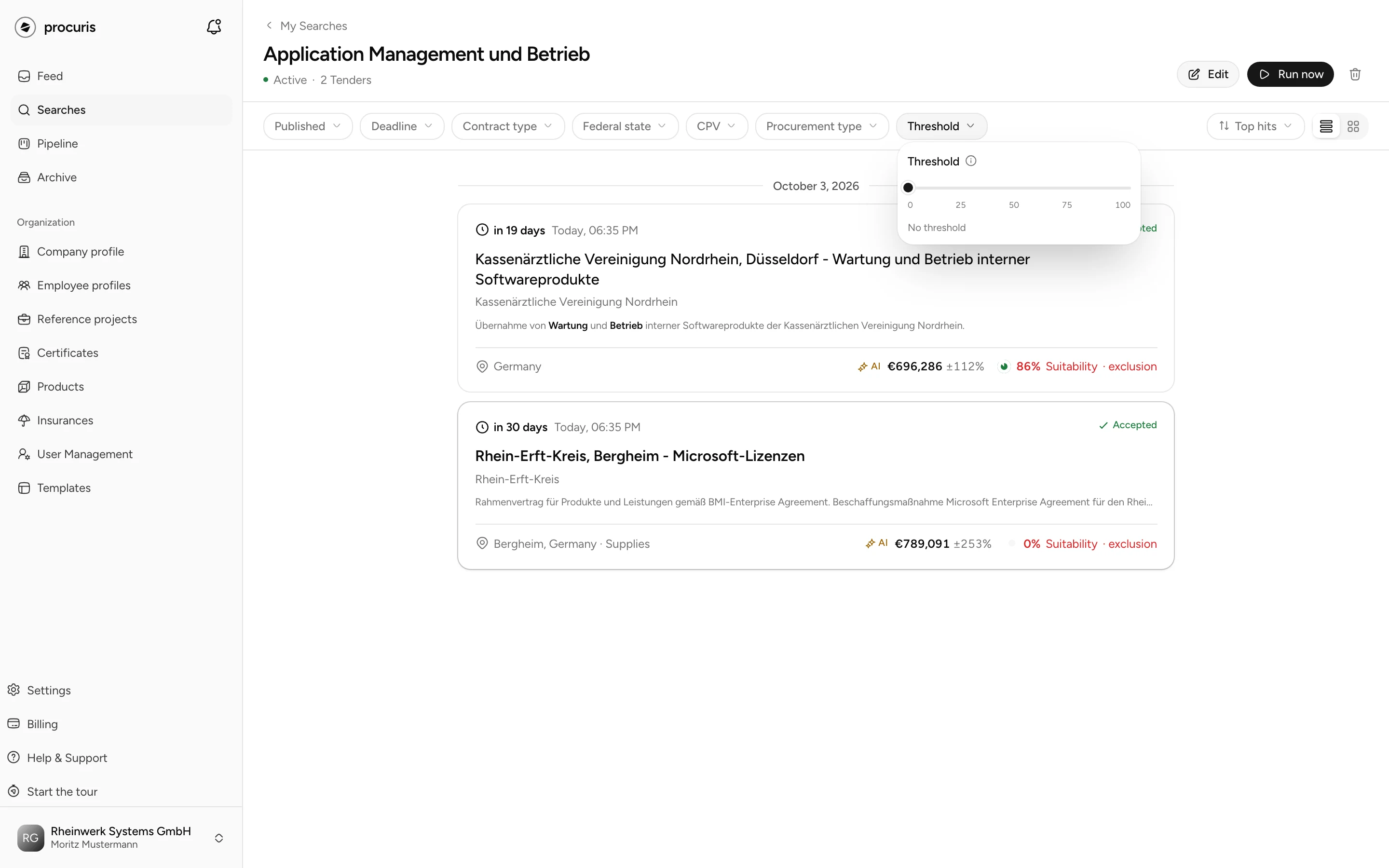
The threshold orders the hit list of a saved search. Hits at or above the value stand at the top and go into the mail. The others follow further down the list. In a saved search with an activity description, it is 50 without a choice of your own.
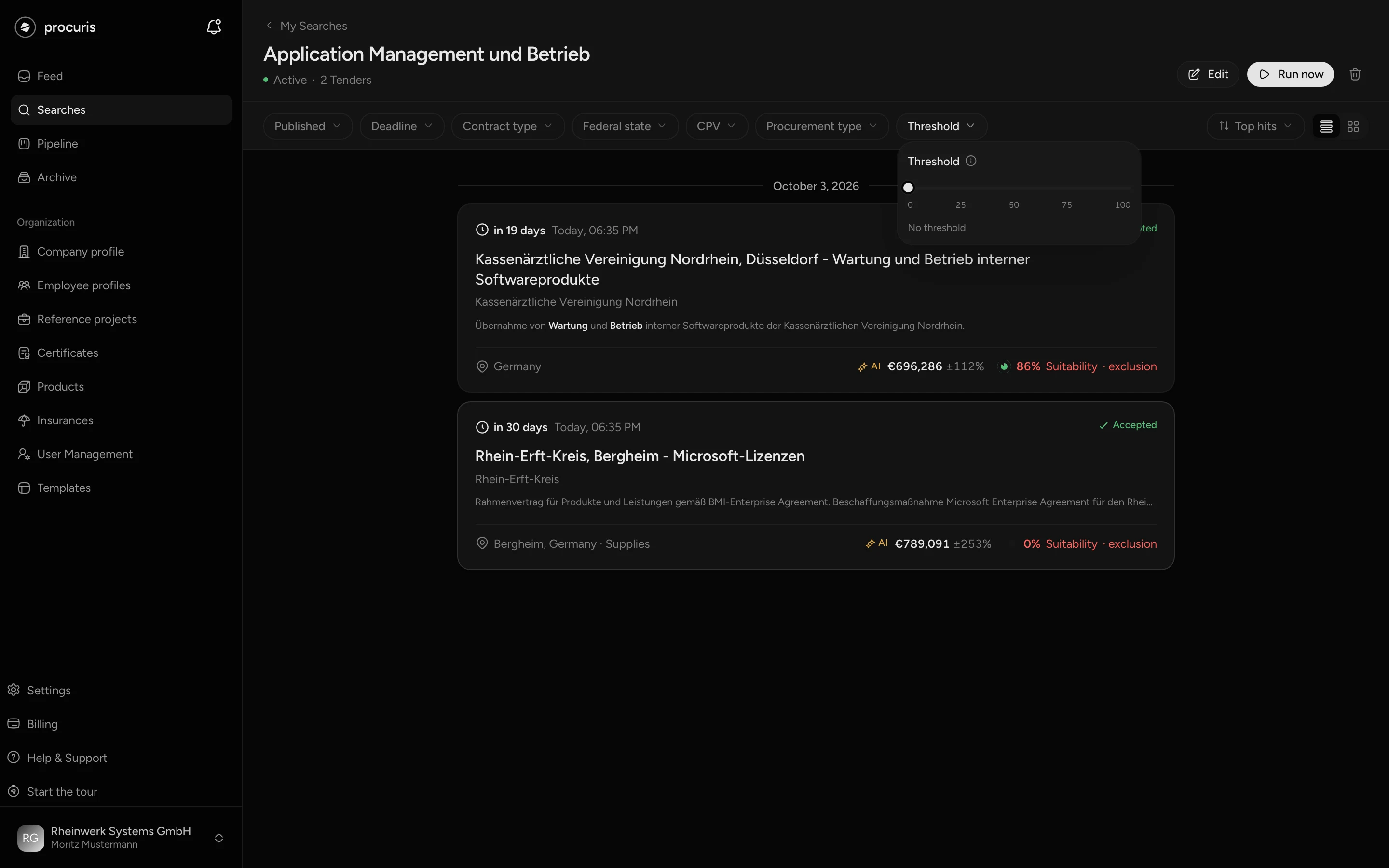
- Where you set it: in the hit list through the Threshold filter, or when editing the saved search in the Threshold section. Both places show the same value.
- What changes: The threshold recomputes nothing. It only moves where a hit stands. While you drag the slider, a line tells you what would happen, for example "12 of 40 hits would follow further down the list".
- What does not happen: No hit is deleted. The Threshold section reads "not an admission filter, display only". This means: the threshold does not change which tenders the saved search finds. It changes where a hit stands in the list and whether it goes into the mail.
- Clear the threshold: Drag the slider to No threshold or click the x on the Threshold filter.
Hits whose activity is not judged yet stand at the top, whatever value applies.
Hits below the threshold
Hits below the threshold are not lost. They stand below a line with the text "8 more below 50%", paler but complete. You open and work on them like the hits above. Only the mail leaves them out: notifications carry hits at or above the threshold, and everything else stays in the hit list.
Without an activity description
Without an activity description, the threshold compares with the Suitability instead of the fit. The card then shows the suitability in percent. Three things behave differently:
- There is no default. Without a choice of your own, it reads No threshold.
- Hits below the value and hits without an assessed suitability are hidden from the list and the mail. None is deleted.
- The list gives the number, for example "5 hidden below the threshold". Show them brings these hits back into the list, Hide again takes them out.
On the Free plan
On the Free plan the threshold is locked. The Threshold filter carries a lock, and when you edit the saved search, the slider reads "The threshold comes with Pro. See the upgrade". A click shows what Pro includes. A saved activity description rests on Free and takes effect again once your plan includes the fit.
A threshold from the Pro trial stays saved on Free and keeps working. Because hits on Free carry no fit, it hides hits from the list and the mail, in the list all of them. None is deleted. You notice this in two places: the Threshold filter shows the value with a lock, and the header of the list reads something like "0 of 40 tenders". Show them does not exist on Free, and you cannot change the value either. Clear the threshold instead: with the x on the Threshold filter, or when editing with Clear threshold and Save. After that the hits stand in the list again and go into the mail again.
Sort by fit
You sort the hit list under Sort by. Fit puts the highest fit first. By day, then fit groups the hits by day and sorts each day by fit. Without an activity description, the two entries are called Suitability and Top hits.