Pipeline
Put tenders into the pipeline as cards, move them through the columns, assign owners and decide on your bid.
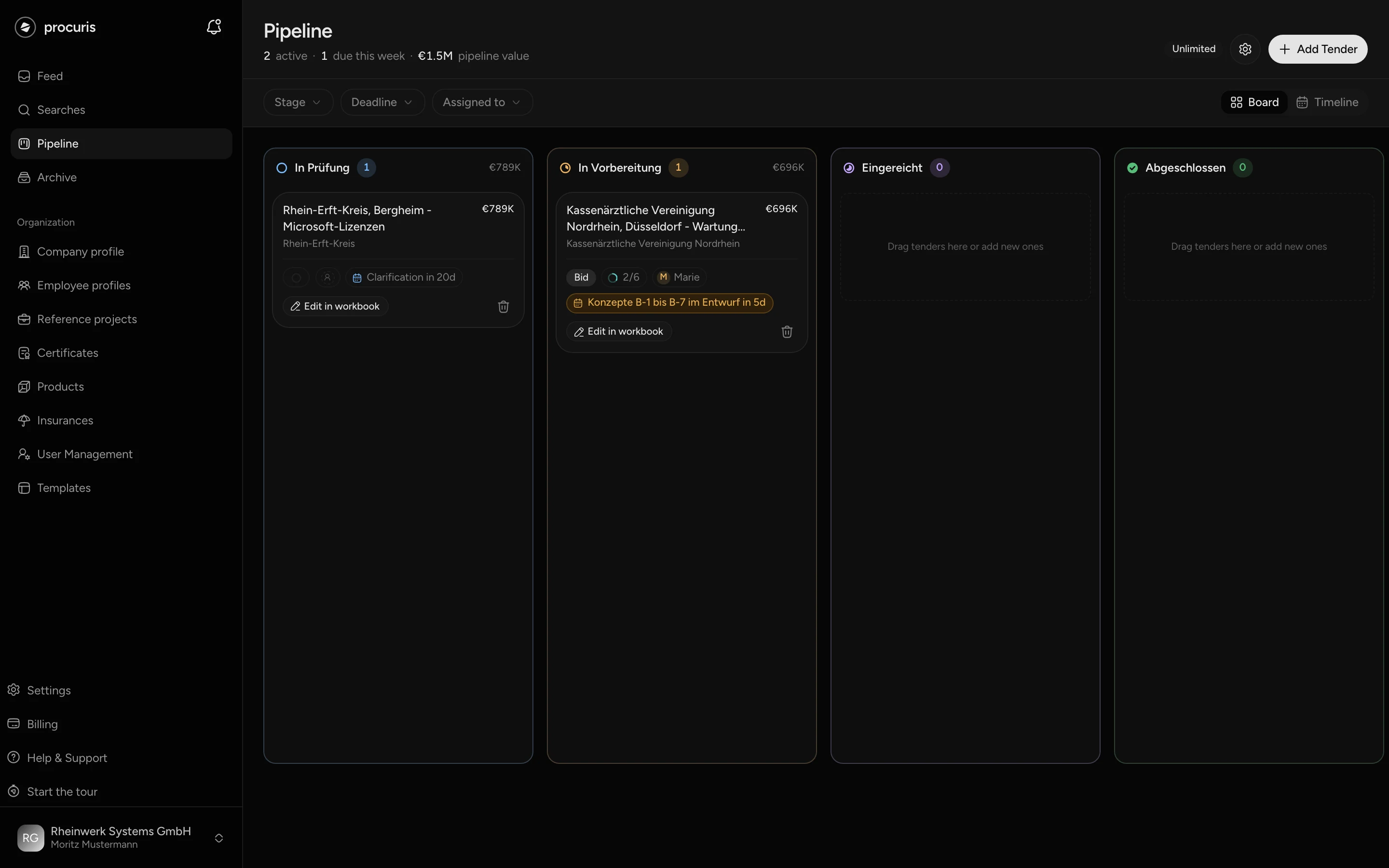
The Pipeline is where you steer the tenders your team works on. It shows your tenders in progress as a board with columns and cards. A card stands for exactly one tender. Every member of your organization sees the same cards. You open it in the sidebar under Pipeline.
What the board shows
Each column stands for a stage of work. New organizations start with four columns whose names say what they are for:
- Under review: you are still checking whether to bid. New cards land here because the column is marked as Default.
- Preparing: you are working on the bid.
- Submitted: your bid has been handed in.
- Completed: the procedure is over for you. The column is a Final stage, its cards no longer count as active.
These four names appear in the language of the interface, in the German interface as In Prüfung, In Vorbereitung, Eingereicht and Abgeschlossen. That holds on the board, in the filters, in the windows, on the page Pipeline Stages in the settings (see below) and in the notification in the Inbox and by email when a card changes column. Only the rename field on the page Pipeline Stages shows the stored German name. A column you renamed or added yourself carries the name you gave it everywhere.
You decide when a card moves on. Drag it into the next column as soon as you are further along. procuris moves a card by itself only on No-Bid and when you take a No-Bid back or switch it to Bid (see below). Above each column you see the number of cards and the sum of their contract values.
A card shows the title at the top with the contract value to its right, and the contracting authority below. The row underneath sums up the state in small fields:
- Bid or No-Bid, once you have decided on your bid (see below).
- A ring with the progress, for example "3/6". It counts how many of the six modules of the Workbook, where you work on this tender, are ticked off as done (Plan). This also applies to older workbooks. While nothing is ticked, the ring stays empty and shows no number. Point at it with the mouse to read, for example, "3 of 6 steps".
- The owners, shown with the first name of the first person and a suffix such as "+2" when there are more. An empty dashed circle means Unassigned.
- The next deadline with the time left, for example "Submission in 12d". When it is seven days away or less, the field turns yellow. A missed deadline shows in red as "Submission overdue". Without a known deadline the field reads No deadline.
The ring also counts the Bidder questions module, which cannot be ticked off because you get it through an individual quote. The ring therefore never closes completely. Edit in workbook on the card opens the workbook (Workbook).
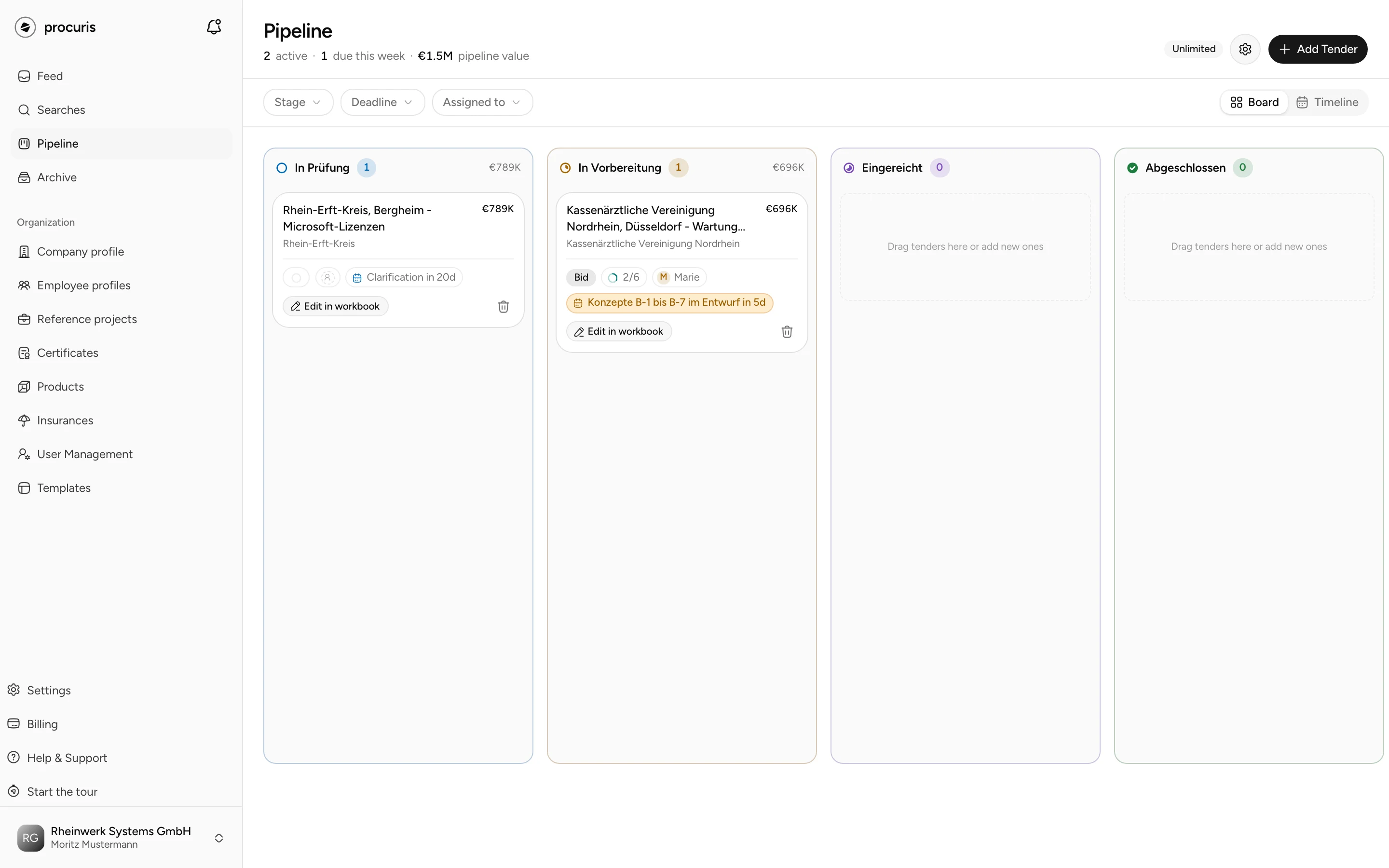
The page header sums up the pipeline in three figures:
| Figure | What it counts |
|---|---|
| active | cards in columns that are not a final stage |
| due this week | cards with a deadline in the next seven days. Cards without a deadline and cards in final stages do not count. |
| pipeline value | sum of the contract values of the active cards |
The filters Stage, Deadline and Assigned to narrow the board, Clear filters removes them. The figures in the header keep counting the whole pipeline. The Deadline filter shows only cards with a deadline that are not in a final stage. All shows every card again. Instead of Board, Timeline lists the cards by deadline, from Overdue to No Deadline, with a calendar beside them.
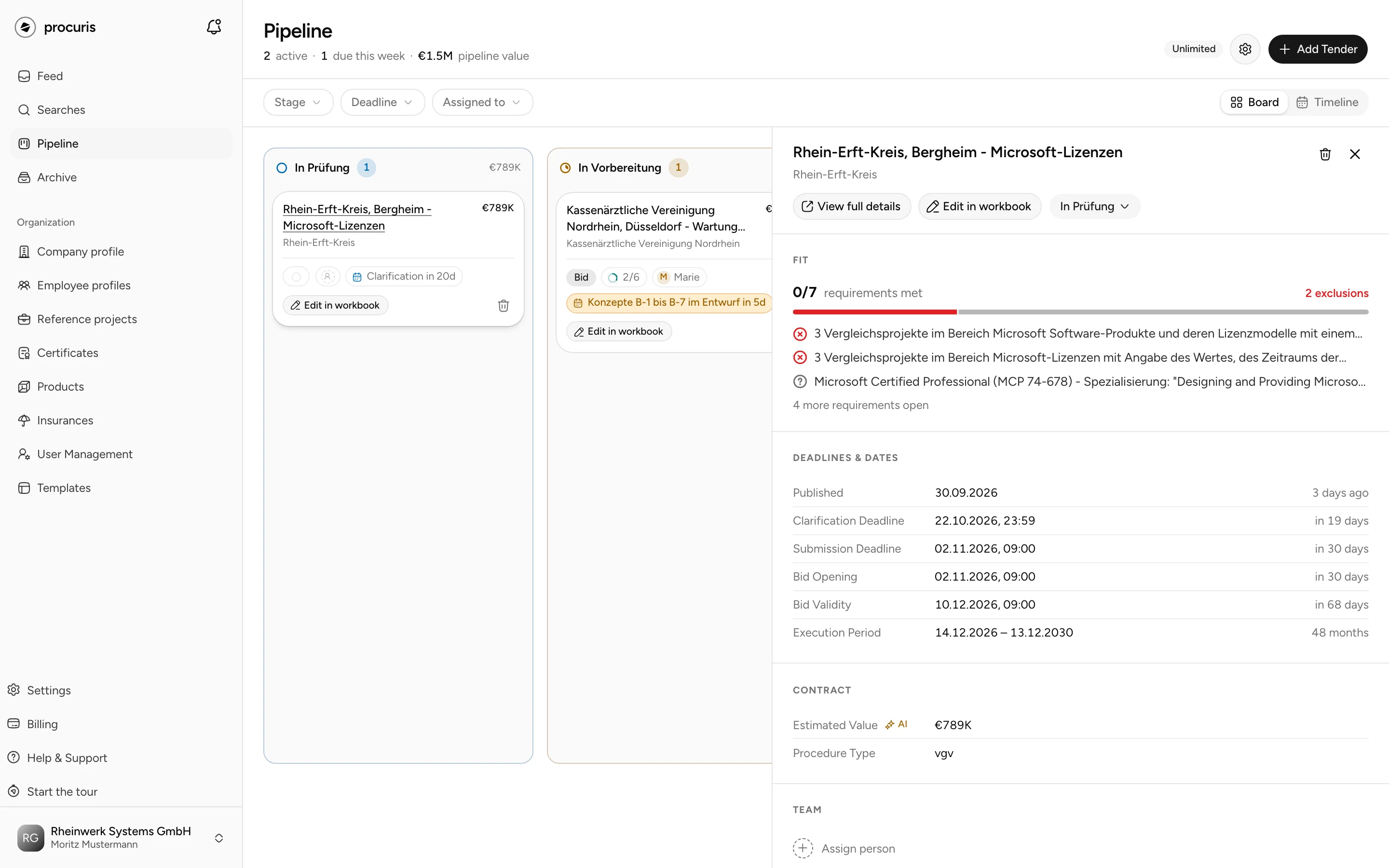
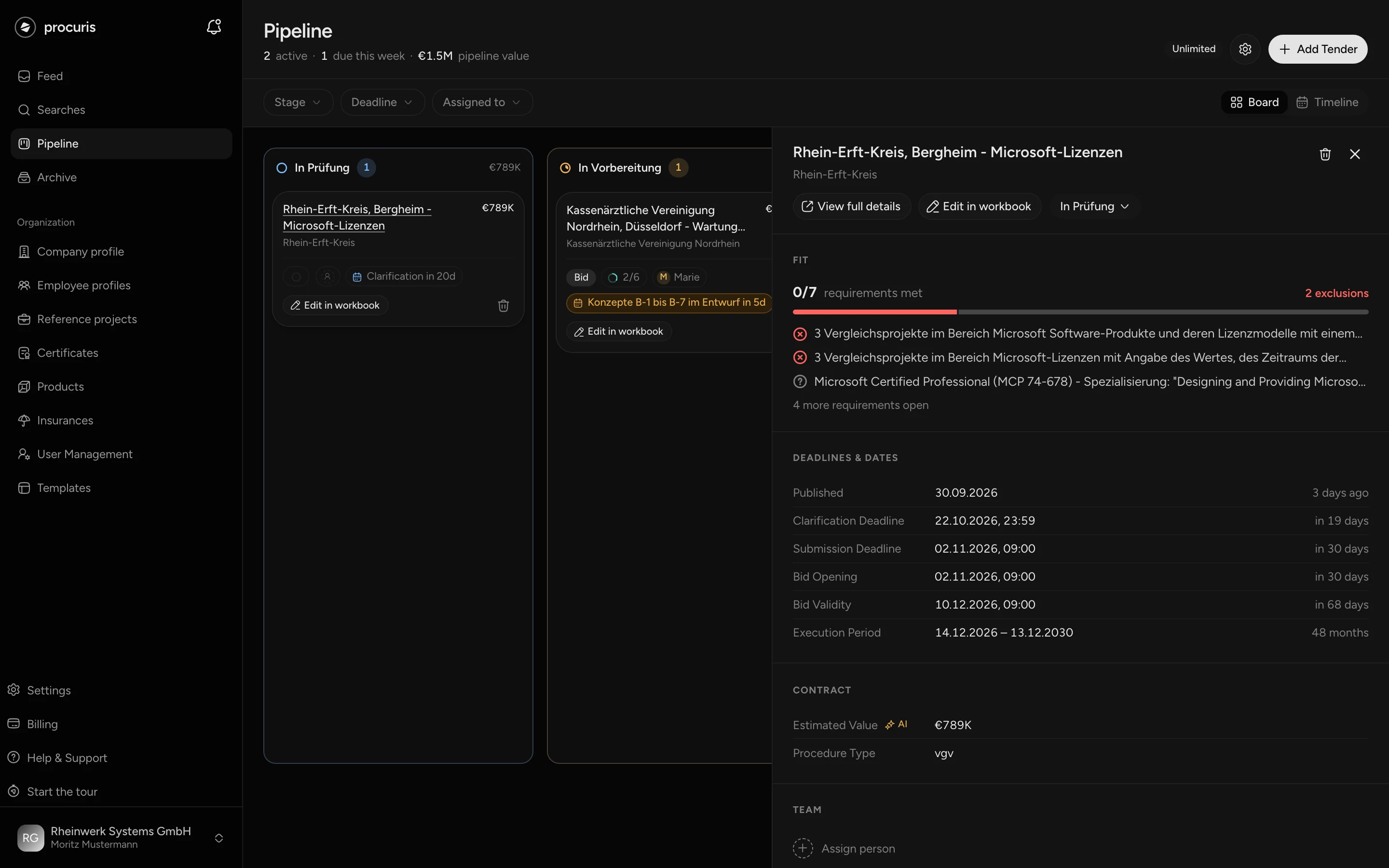
A click on a card opens its detail view on the right with the sections Fit, Deadlines & Dates, Contract, Team and Notes. On the Free plan the Fit section is locked (Fit and threshold). View full details leads to the detail page of the tender.
Putting tenders into the pipeline
A card is created in one of these ways:
| Where | What you choose | What happens |
|---|---|---|
| Preview of a tender in the feed or in the hits of a saved search, detail page | Add to pipeline | A window asks for Stage, Assign to and Note (Optional). The card then sits in the pipeline. |
| Preview, Team row | the plus | creates the card in the column marked as Default and opens the list of people |
| Pipeline | Add Tender, tab From Procuris | You search procuris for a tender from three characters on and file it with Add to Pipeline. |
| Pipeline | Add Tender, tab Create yourself | You create a tender you found elsewhere (steps below). |
If a tender is already in the pipeline, the preview shows Open pipeline instead of Add to pipeline. The chat also puts tenders into the pipeline when you ask it to.
Creating a tender yourself works from Pro and during the Pro trial. On Free, Create adds no card and opens a window that offers Pro instead.
To create a tender yourself:
Drop the tender documents into the field Drag documents here or fill in the key data. One field or one document is enough. You can add up to 20 documents, up to 25 MB per file and up to 90 MB per ZIP archive.
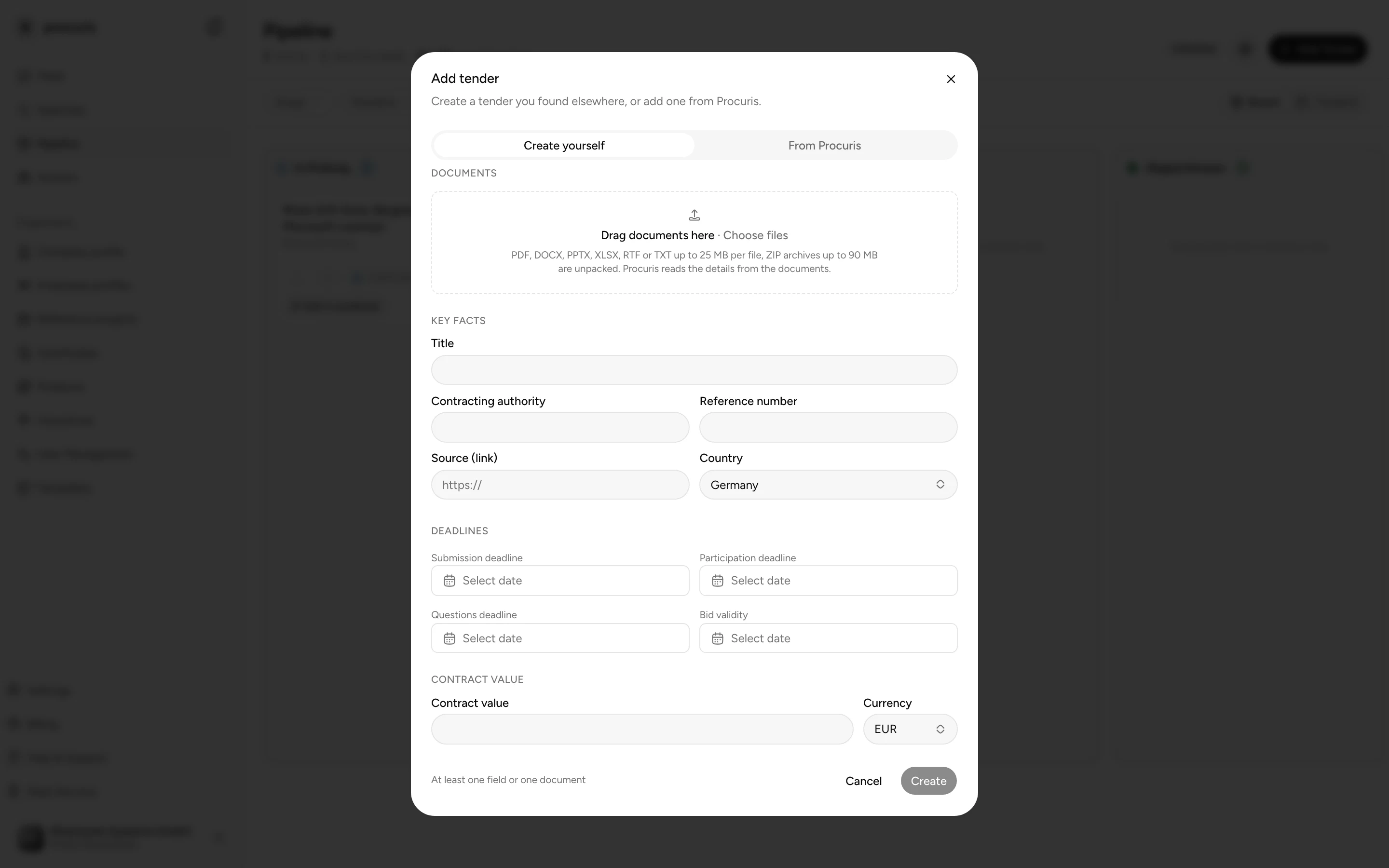
Under In the pipeline, check the Stage and pick the owners under Assign to.
Choose Create. If procuris reports Already with us, Add this one takes the existing tender, and Create anyway creates a new one.
The card then sits in the chosen column. With documents, procuris reports "Tender created. Procuris is now reading the documents." The other members of your organization get a notification in the Inbox (the bell at the top next to the logo) when a card is added, changes column or is removed. If you wrote something into Note (Optional) when adding the card, procuris also notifies them as for any shared note (Notes).
Moving cards
Drag a card into the next column as soon as you are further along. In the detail view of a card, a button carries the name of its column. It opens the list of all columns, where you pick the target. You cannot move cards in the Timeline.
Changing the columns
The columns apply to your whole organization. In the settings they are called stages.
In the pipeline, choose the gear Settings next to Add Tender. The page Pipeline Stages opens.
| What you change | How |
|---|---|
| Name | Click the name, change it, confirm with Enter. |
| New stage | Add Stage, enter a name, Save. Six stages at most. |
| Order | Drag the row by the handle on the left. Colour and symbol of the column follow its position. A final stage is green and carries a tick. |
| Default | procuris puts new cards into this stage unless you pick another. Exactly one stage is the default. You switch by turning on another one. |
| Final stage | Cards in it do not count as active and not towards the pipeline value. Out of the box, Completed is a final stage. This page shows it as Abgeschlossen. |
| Delete | Bin, choose the target stage under Move tenders to, Delete. The cards move along. The last stage cannot be deleted. |
Assigning owners
Owners appear by name in the Team section of a card.
In the window Add Team Members, tick the people. The search field finds them by name or email.
When you create a card, you already set owners through Assign to. To take a person off, point at their row in the Team section and choose the cross.
The assignment itself sends no notification. Your colleague finds her cards through the filter Assigned to. If the team should know, write a note with Share with team, because the other members then get a notification (Notes).
Deciding on your bid
Whether you submit a bid, you record on the card as Bid or No-Bid. The decision applies to your whole organization. Decline in the feed or in the hits of a saved search is separate from it: it creates no card, moves none and sets no No-Bid.
Give the reason. For Bid you pick at least one reason under Why yes, for No-Bid exactly one under Why not. A Note is optional.
procuris stores a snapshot of the situation with it, such as time left and gaps, under Recorded alongside. The snapshot cannot be changed. The card then shows Bid or No-Bid.
A card with No-Bid stays in the pipeline, and its workbook is kept. It stays in its column, unless your pipeline has a column named Abgelehnt, Kein Angebot, Keine Teilnahme or No-Bid. procuris then puts it there. Create such a column and make it a Final stage, because declined cards then no longer count as active.
With No-Bid, the deadline reminders for this card end. If you take the decision back or switch to Bid, procuris reminds you of the deadlines again (Plan).
After the decision, the two buttons give way to the decision and its date. A click on it opens a menu with Edit reasons, Switch to bid or Switch to no-bid and Take the verdict back. After taking it back, the tender is open again. If the card sat in one of these columns for declined tenders, it moves back to the Default column when you take the decision back or switch to Bid.
Removing or deleting a card
The bin on the card does two different things. A hint shows which case applies when you point at the bin with the mouse.
| Hint on the bin | Applies to | What disappears | What stays |
|---|---|---|---|
| Remove from pipeline | tenders from procuris | the card with its assignees, notes, decision and Tasks, and the reference projects, employee profiles, partners, contacts and concepts attached to it | the workbook, and the tender in the feed, in the archive once the deadline has passed. Add the tender again and the workbook is back. |
| Delete tender | tenders your organization created itself | the tender with its documents, requirements and the work in the workbook, for good | nothing |
Both cases ask for confirmation on the card before deleting. The bin at the top of the detail view, by contrast, removes a tender from procuris without asking. A tender you created yourself cannot be deleted while your company profile uses one of its documents as evidence. Remove the evidence from the profile first.
If you only want to stop pursuing a tender, choose No-Bid instead of the bin, because the notes, assignees and reasons are kept.
A card stays in its column after the deadline has passed, it does not move into the archive. The archive shows public tenders whose deadline has passed, independent of your pipeline. From there you can put a removed tender into the pipeline again, as a new card. Your workbook is then back. What is missing from the earlier card is listed under What happens to documents and workbook.
How many cards fit
On the Free plan the pipeline holds ten cards. Next to the gear the header shows the count, for example "7/10". Every card counts, including declined cards and cards in a final stage. At the eleventh card procuris shows Limit reached, and Upgrade to Pro leads to the plan change. Remove a card to free a place. On Pro and Business the header reads Unlimited (Plans).
If your organization drops back to Free after the Pro trial, all cards are kept. You add new cards again once fewer than ten are in the pipeline.